To make your iPhone boring, strip out everything that rewards you for picking it up. In practice that means nine changes: reduce the home screen to one page of plain tool apps, hide the rest in the App Library, switch the whole screen to grayscale, batch notifications into a Scheduled Summary, empty the dock of anything social, set a flat dark wallpaper, turn off Raise to Wake, keep a Focus mode running, and finally schedule-block the two or three apps that survive the purge. Done together, these turn a slot machine back into a tool — without buying a separate dumb phone. Here is the full walkthrough.

Why does a “boring” phone actually work?
Your iPhone is engineered to look interesting. Bright icons, red notification badges, autoplaying thumbnails and the little dopamine hit of a fresh feed all exist to make the next tap feel worth it. You don’t scroll for two hours because you lack willpower — you scroll because the device is a well-designed reward machine that keeps advertising itself every time it lights up.
A boring phone breaks that loop by attacking the cue, not your self-control. When the screen is gray, the icons are dull, and there’s nothing on the home screen but Notes and Maps, picking up the phone stops paying off. Nothing flashes. Nothing is new. Your hand reaches for it, finds nothing to chase, and puts it down. This is the same idea behind environment design beating willpower: change what’s in front of you and you don’t have to keep fighting yourself. A boring phone is a commitment device you carry in your pocket.
How do you make your iPhone boring, step by step?
Work through these in order. Each one takes a minute or two, and you can stop at whatever level of boring feels sustainable.
- Reduce to one home screen of tools. Keep only apps you use to do something: Phone, Messages, Calendar, Notes, Maps, Camera, Wallet, banking. No feeds, no games, no shops. Long-press an app, choose Remove from Home Screen, and it moves to the App Library without being deleted.
- Send everything else to the App Library. The App Library (swipe left past your last home screen) holds every app alphabetically. If Instagram lives there instead of on your home screen, you have to search for it on purpose — a small friction that kills half of your absent-minded opens.
- Turn on grayscale. Settings → Accessibility → Display & Text Size → Color Filters → on → Grayscale. This is the big one; see the next section for the triple-click trick that makes it toggleable.
- Batch your notifications. Settings → Notifications → Scheduled Summary. Bundle non-urgent apps into one or two deliveries a day. Leave calls, texts and 2FA live; silence everything that just wants your attention. If your badges feel out of control, our guide on notification overload goes deeper.
- Empty the dock. The four dock slots sit on every home screen, so a Safari or Instagram icon there is a permanent invitation. Replace them with dull essentials — Phone, Messages, Camera, Notes — or leave slots empty.
- Set a flat, dark wallpaper. A plain black or deep-navy background makes the whole phone feel like an appliance, not a canvas. Bonus: on OLED iPhones a black wallpaper saves a little battery.
- Turn off Raise to Wake. Settings → Display & Brightness → Raise to Wake → off. Now the screen stays dark until you deliberately tap it, so a glance at your desk doesn’t turn into a session.
- Keep a Focus mode running. Set up a “Boring” Focus (Settings → Focus) that hides distracting apps and mutes their notifications, and leave it on most of the day.
- Schedule-block the survivors. There are always two or three apps that survive every purge — the ones you re-download at 11pm. Put those behind a real block on a schedule (more on this in the final section).
Should you turn on grayscale — and how?
Grayscale is the change people feel first. Color is how your brain finds rewards quickly: red means unread, and the saturated blues and pinks of social icons are literally designed to catch your eye. Drain the color and a feed of Reels looks like a wall of gray rectangles you have no urge to keep flicking through.
Make it a switch you control:
- Go to Settings → Accessibility → Accessibility Shortcut and select Color Filters.
- Now triple-click the side button (or Home button on older iPhones) to flip grayscale on and off instantly.
Keep it gray by default and give yourself full color only when you genuinely need it — editing a photo, checking a map, following a recipe. If you want the deeper version of this experiment, we broke it down in the grayscale phone experiment.
“I’d tried every screen-time limit and just tapped ‘Ignore.’ Going grayscale plus one home screen was the first thing that actually stuck — my phone got so dull I started leaving it in another room without deciding to.”
— Marcus, product designer, 31
Boring iPhone vs. buying a dumb phone
The dumb-phone trend is real, but a second device is expensive and lossy. Here’s how the reconfigured iPhone compares.
| Boring iPhone (free) | Dedicated dumb phone | |
|---|---|---|
| Cost | $0 — you already own it | ~$59 (Brick add-on) to ~$700 (Light Phone) |
| Camera, Maps, banking, 2FA | Kept | Usually lost or clunky |
| Blocks TikTok / Reels | Yes, with schedule-blocking | Yes, physically absent |
| Reversible in seconds | Yes (triple-click for color) | No — it’s the whole point |
| Carry two devices? | No | Yes |
For most people the boring iPhone wins because it keeps the genuinely useful parts of a smartphone. If you’re curious about going fully device-separate, our dumbphone experiment for focus covers what that week actually feels like — and why many people come back to a boring iPhone instead.
What do you keep? (Be honest about it)
A boring phone is not a punishment phone. The whole reason it beats a $700 minimalist device is that you keep the things a phone is genuinely great at: the camera you’ll want when your kid does something ridiculous, Maps for a new city, mobile banking, boarding passes, two-factor codes, and messaging the people you love. Boring is aimed only at the infinite, self-refilling apps — short video, social feeds, news doom-loops, mobile games.
If you strip too much too fast, you’ll quietly re-download everything within a week. Start with grayscale and one home screen, live with it for a few days, then tighten. This is the same “make the default calm, not impossible” principle behind a proper digital minimalism setup: reduce until the phone is quiet, not until it’s useless.
How does Unscrol help you keep the phone boring?
Everything above is free with Apple’s built-in tools, and you should absolutely start there — grayscale, App Library, Focus and Scheduled Summary cost nothing. But Apple’s own Screen Time limits have one famous weakness: when you hit a limit, iOS shows an “Ignore Limit” button, and one tap later you’re back in the feed. The boring setup fades the moment you’re motivated enough to undo it. Unscrol exists to hold the boring in place on the days your willpower dips.
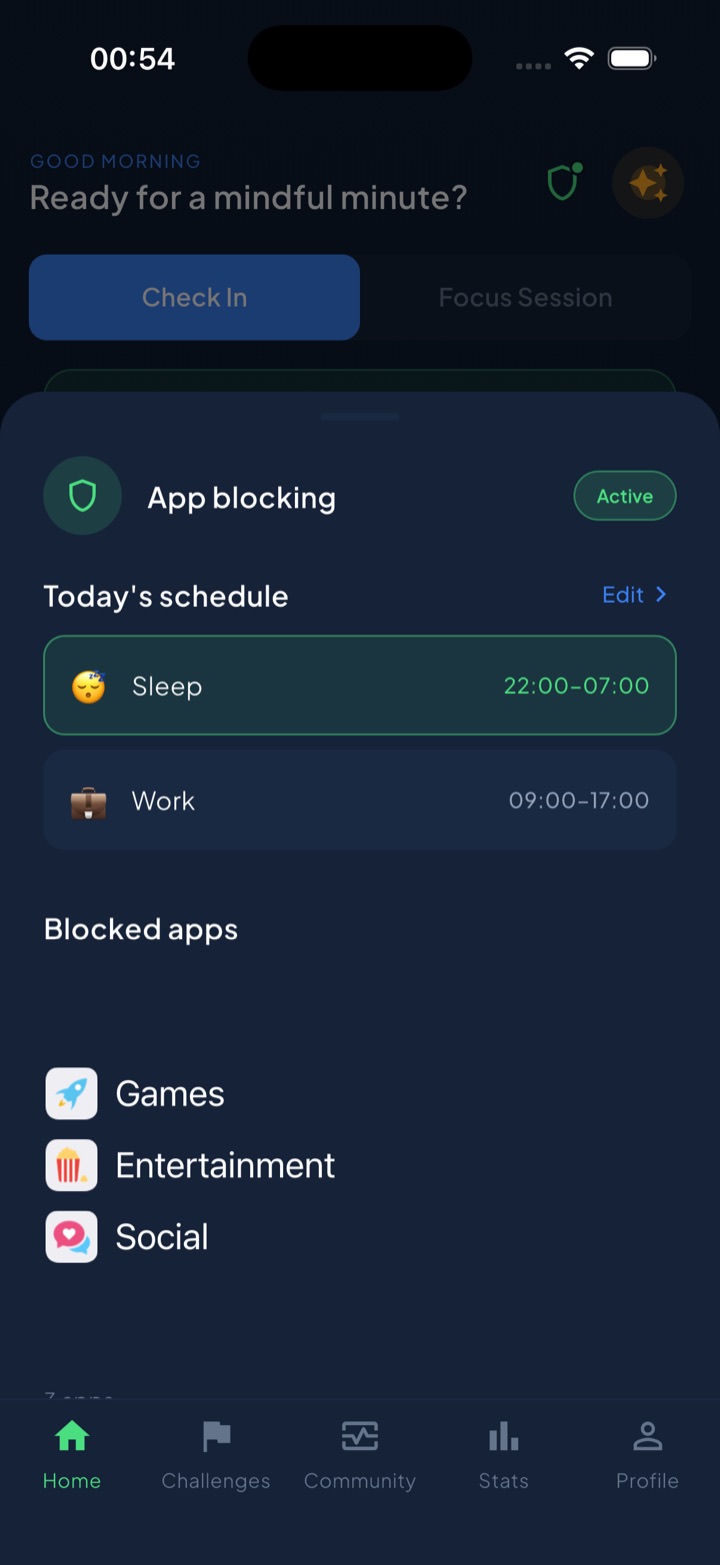
Unscrol is a free iPhone and Apple Watch app that blocks apps with Apple’s official Screen Time frameworks — real system-enforced shields, not overlay reminders you can swipe away. You set up scheduled blocking routines (a Work block 09:00–17:00, a Sleep block 22:00–07:00) so the two or three apps that survived your purge simply don’t open during those hours. There’s a short “take a break” bypass for the honest exceptions — a deliberate middle ground between a soft nudge and a prison lock. And a unified daily streak plus quick mood and urge check-ins turn “keep my phone boring” into a habit you can actually see building. Which apps you block and your usage stats stay on-device with iOS and never reach Unscrol’s servers. Unscrol Pro (an optional subscription) adds extras like the Streak Saver on top of the core blocking and scheduling. Its job isn’t to nag you — it’s to make boring the default long after the novelty wears off.
Frequently asked questions
How do I make my iPhone boring?
Make your iPhone boring by removing everything that rewards you for picking it up. Strip the home screen to a single page of plain tool apps, move everything else into the App Library, and turn on grayscale so bright icons and thumbnails go gray. Push notifications into a Scheduled Summary, clear social and browser apps out of the dock, and set a solid dark wallpaper. Turn off Raise to Wake, keep a Focus mode running, and schedule-block the two or three apps you still open on autopilot. The goal is a phone that no longer advertises itself.
Does turning on grayscale actually reduce phone use?
Grayscale removes the color your brain uses to spot rewards fast — the red badges, the bright TikTok and Instagram icons, the vivid video thumbnails. Several tech writers and digital-minimalism advocates report it takes the pull out of doom-scrolling, and it's the single most-cited boring-phone tweak. There is no large peer-reviewed study proving a fixed percentage drop, so treat specific numbers with caution. But grayscale costs nothing, reverses in one triple-click of the side button, and is the fastest way to feel the difference within a day.
What's the difference between a boring phone and a dumb phone?
A dumb phone is separate hardware — a $50 to $700 device (like a Light Phone or a bricked-down feature phone) that physically can't run TikTok. A boring phone is your existing iPhone reconfigured so it behaves like one: grayscale, no tempting home screen, notifications silenced, distracting apps blocked on a schedule. The boring-phone route keeps your camera, maps, banking, two-factor codes and boarding passes, which is why most people stick with it. You get most of the calm of a dumb phone without carrying two devices or spending hundreds of dollars.