Zoom fatigue is the distinct, heavy exhaustion that follows a day of video calls — and it is not the same thing as being tired of work. Video calls are uniquely draining because they force your brain to do four unnatural things at once: hold close-up eye contact with a grid of faces, watch yourself in a mirror for hours, sit frozen inside a camera frame, and work overtime to send and read nonverbal cues through pixels and audio lag. Stanford researcher Jeremy Bailenson named this bundle “nonverbal overload,” and it applies to every platform — Zoom, Teams, Meet alike. The good news: because the causes are specific, the fixes are too. Hide self-view, shrink the window, take some calls walking, make cameras optional, and put real breaks between meetings — most of it costs nothing and starts working the same day.

Is zoom fatigue real, or are we just tired of work?
It’s real, and it has been studied. In early 2021, Jeremy Bailenson — founding director of Stanford’s Virtual Human Interaction Lab — published the first systematic argument for why videoconferencing exhausts people in ways that in-person meetings and phone calls don’t. His lab and collaborators then built the Zoom Exhaustion & Fatigue (ZEF) scale to measure it, and survey research using that scale suggests the fatigue rises with the number and length of video meetings — and that it’s not evenly distributed (more on that below).
The key insight: this isn’t about meetings being boring or workloads being heavy — those problems existed before 2020. Zoom fatigue is a layer of nonverbal effort added on top of the meeting itself, effort your brain never spent when the same conversation happened across a table or by phone. That’s why naming the specific mechanisms matters: each one has its own fix.
Why are video calls so much more tiring than in-person meetings?
Bailenson’s argument identifies four mechanisms, and once you see them you can’t unsee them:
| What your brain expects | What a video call does | Why it drains you |
|---|---|---|
| Gaze that wanders naturally — speaker, notes, window | A grid of close-up faces that appears to stare at you, constantly | Your nervous system reads sustained close-up gaze as intensity or conflict |
| No mirror in the meeting room | Your own face on screen, all day | Constant self-monitoring and self-evaluation |
| Freedom to shift, lean, pace | A camera frame you must stay inside | Stillness itself is tiring; movement supports thinking |
| Effortless body language | Cues performed deliberately and decoded through pixels and lag | Every nod, pause, and glance becomes conscious work |
Two of these deserve extra emphasis for remote workers:
- The gaze problem is about size and distance, not just staring. On a typical monitor, faces appear at a size your brain associates with someone standing very close — a distance normally reserved for intimacy or confrontation. Hours of that keeps your system in a low-grade state of alert.
- The cognitive load is the invisible one. In person, you process body language for free. On a call, you perform attentiveness (exaggerated nods, looking into the lens) and decode everyone else’s through a compressed image with a slight delay — researchers have found that even small audio lags make conversation feel less fluid, so your brain compensates constantly without telling you.
This is also why a long phone call while pacing around the room feels lighter than a 30-minute grid call: audio-only removes the gaze, the mirror, and the frame in one stroke, and walking gives your body back to you.
Why is seeing your own face so exhausting?
Of the four mechanisms, self-view is the strangest — because nothing in offline life resembles it. Bailenson’s comparison is memorable: it’s as if someone followed you around the office all day holding a mirror. Psychology research on mirrors has long suggested that seeing your own reflection increases self-focus and self-criticism — useful for a two-second hair check, corrosive when it runs for six hours of meetings.
Follow-up survey work at Stanford using the ZEF scale found that women report significantly more zoom fatigue than men on average, with self-view-related mirror anxiety appearing to be one reason — and longer meetings with shorter gaps between them aggravate it for everyone.
The fix is absurdly easy and almost nobody uses it: hide self-view. On most platforms it’s one click (in Zoom, right-click your video → “Hide Self View”; Teams and Meet have equivalents). Your camera stays on and everyone else sees you exactly as before — you just stop supervising your own face.
“I thought I hated meetings. It turned out I hated watching myself in meetings. I hid self-view on a Tuesday, and by Friday my 4 p.m. calls stopped feeling like a wall. Everyone else sees the same me — I’m just no longer in the audience for it.” — Marcus, data analyst, 34
How do you make your own calls less draining?
You don’t control your company’s meeting culture, but you control your own setup. In rough order of impact:
- Hide self-view once your framing is set. One click, biggest single win for most people.
- Shrink the window. Exit full screen so faces drop back to a natural size — smaller faces, less perceived staring.
- Create room to move. Push your chair back, use an external keyboard, or reposition the camera so you can stretch and shift without leaving frame — you think better when your body isn’t clenched.
- Convert calls to audio when video adds nothing. One-to-ones, status updates, and brainstorms often work better as walking calls — you get movement, daylight, and zero nonverbal overload.
- Look away on purpose. Take notes on paper and let your gaze rest somewhere distant while you listen — it’s not rude, it’s how humans think. The 20-20-20 rule for digital eye strain is a ready-made rhythm: every 20 minutes, 20 seconds on something 20 feet away.
- Refuse back-to-backs where you can. Book 25- and 50-minute meetings instead of 30 and 60, and defend the buffer. Researchers at Microsoft’s Human Factors Lab found that stress readings climb steadily across back-to-back meetings, while even short breaks between them let the brain reset.
- Make the break a real break. Swapping the meeting screen for a scrolling screen isn’t rest — as we cover in the cost of context switching, it leaves residue that follows you into the next call. Stand, stretch, look out a window. Ninety seconds of that beats nine minutes of scrolling.
What meeting hygiene should remote teams adopt?
Individual tactics only go so far if the culture demands cameras-on, back-to-back, all day. The teams that handle remote work best tend to converge on a few norms:
- Camera-optional as explicit policy. Say it out loud, in writing: camera-off is not disengagement. Defaulting to audio for internal calls removes the entire nonverbal-overload stack for everyone at once.
- An agenda or it doesn’t happen. Meetings without a stated purpose expand to fill the calendar. A two-line agenda also makes it legitimate to decline.
- 25/50-minute defaults, org-wide. Buffers only exist if the calendar tool creates them by default — a one-time settings change with a permanent payoff.
- Async first. Status updates, FYIs, and progress reports belong in writing; meetings are for decisions and discussion. Every update moved to async is a call that never happens — and fewer pings all day helps with the parallel problem of notification overload.
- Meeting-free blocks. Protect at least one half-day per week where no recurring meeting can land, so deep work isn’t something people do at 9 p.m.
None of this is anti-meeting. It’s anti-waste: fewer, shorter, more deliberate calls — with the video layer reserved for the moments it genuinely earns its cost.
How does Unscrol help with zoom fatigue?
Start with the free fixes — they’re genuinely enough to feel a difference this week. Hide self-view, change your calendar defaults to 25/50 minutes, propose camera-optional norms to your team, and use Apple’s built-in Screen Time to set App Limits on the apps that eat your between-call breaks. The hard part isn’t knowing any of this; it’s that after a draining call, your hand reaches for a feed before your brain gets a vote — and the “break” leaves you more depleted than the meeting did.
That’s the gap Unscrol closes. It’s an iPhone app built on Apple’s own Screen Time frameworks — real, system-enforced blocking, processed entirely on-device, so your block lists and usage never touch our servers.
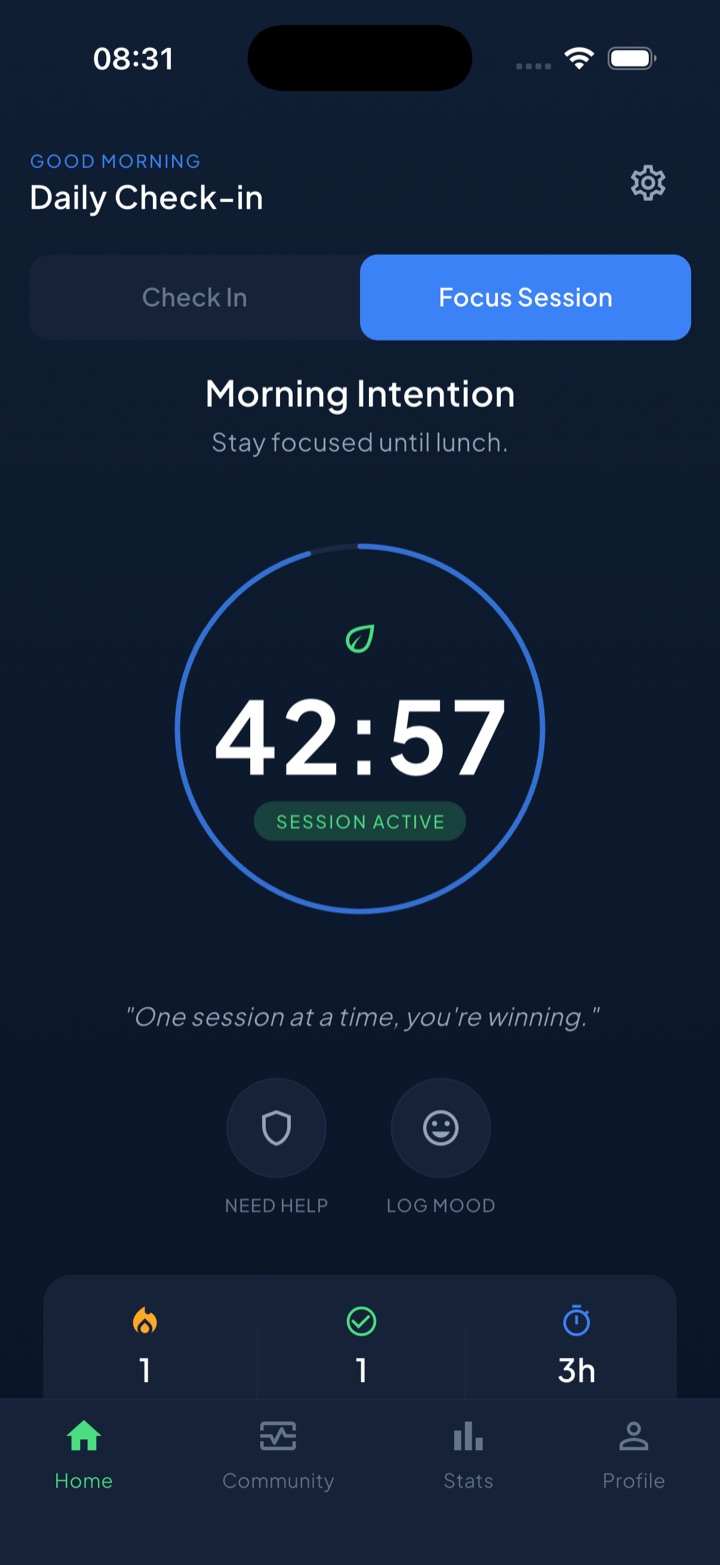
For a remote worker’s day, three pieces do the work:
- A scheduled Work routine shields your distracting apps during working hours (say, 09:00–17:00), so the minutes between calls default to standing up instead of scrolling. A short “take a break” bypass exists for the genuine exception — it’s a speed bump, not a wall.
- Focus sessions with a Live Activity turn your buffer into a visible, protected block: start a 10-minute recovery session after a heavy call and the countdown sits on your Lock Screen while your phone’s temptations stay shut.
- Daily check-ins (morning, afternoon, evening) take thirty seconds and make the pattern visible — the days with walking calls and real breaks are the days you end with energy left. Check-ins and challenges feed one daily streak, which keeps the habit alive past the first motivated week.
The honest version: no app can shorten your meetings — only your team’s norms can. Unscrol’s job is the other half of the equation — making sure that the time between calls actually restores you, instead of quietly draining the little that video left behind.
Frequently asked questions
What is zoom fatigue?
Zoom fatigue is the distinct exhaustion that follows video calls — heavier than the same meetings would feel in person or by phone. Stanford researcher Jeremy Bailenson attributes it to nonverbal overload: video calls force close-up eye gaze at unnatural intensity, keep your own face in view like an all-day mirror, pin you inside a camera frame so you barely move, and make your brain work overtime to send and read nonverbal cues through pixels and lag. It applies to any platform, not just Zoom.
Why are video calls more tiring than in-person meetings?
In a real meeting your gaze wanders, nobody watches you in a mirror, you shift and move freely, and body language is processed effortlessly. A video call reverses all four: a grid of close-up faces appears to stare at you constantly, self-view keeps you self-monitoring, the camera frame keeps you frozen in place, and every nonverbal cue must be deliberately performed and consciously decoded through a laggy screen. Each factor alone is a small tax; stacked across five or six calls a day, they add up to real exhaustion.
How do I reduce zoom fatigue?
Attack the specific causes. Hide self-view once your framing is set — it's one click on most platforms. Shrink the call window so faces aren't uncomfortably large. Turn one-to-ones and status updates into audio-only walking calls. Push for meeting hygiene: agendas, 25- and 50-minute defaults, buffers between calls, camera-optional norms. And make breaks real breaks — stand up, look far away, move — instead of switching from the meeting screen to a scrolling screen.
Does turning off self-view actually help?
For many people it is the single highest-impact fix. Seeing your own face for hours has no offline equivalent — research on mirrors suggests seeing yourself increases self-focus and self-criticism, and Stanford survey work using the Zoom Exhaustion & Fatigue scale found self-view is one reason women report more zoom fatigue than men on average. Hiding self-view doesn't turn your camera off; others still see you normally. You simply stop supervising your own face all day.