You keep bypassing your app blocker because it was designed to let you. Every mainstream blocker on iPhone leaves an escape hatch — change the daily limit, tap “Ignore Limit,” or delete and reinstall the app — and your brain learns that hatch faster than it learns the new habit. So the honest answer to “is there an app blocker I can’t bypass?” is no, not truly — you own the device and Apple gives you the keys. What actually holds is different from pure hardness: a block survives when the decision was made in advance, when the friction stays inconvenient, and when breaking it costs something you genuinely care about. Willpower alone fails, and prison-style lockdown fails too. The middle path is what lasts past week three.
Is there an app blocker you can’t bypass?
This is one of the most-searched questions in this category, so let’s answer it straight: on a phone you own, a genuinely unbypassable blocker doesn’t exist. Apple’s Screen Time even ships with an “Ignore Limit” button right on the block screen — one tap and you get fifteen more minutes or the rest of the day. That’s by design, and it’s the same reason screen time limits so often don’t work: the enforcement and the override live on the same device, controlled by the same tired person at 11pm.

Some tools raise the bar. Brick (a $59 physical NFC tag you tap to unblock) and Opal ($99.99/year, with a “hard mode”) add real steps. But even these are ultimately reversible, because they have to be — the platform itself insists the device owner stays in control. The useful question isn’t “how do I lock myself out forever.” It’s “how do I make my automatic self stop wandering back in without noticing.”
The three ways you’re already bypassing it
Read enough app-blocker reviews and the same three failure patterns show up over and over. You’re probably doing at least one:
- Settings self-sabotage. The classic line from real reviews: “I just change the limit from one hour to two.” Deciding in the moment, while you’re craving, is effortless — so a budget you set on Sunday gets quietly renegotiated every night.
- The delete-and-reinstall loophole. Delete the app, reinstall it from the App Store, and its Screen Time counter often resets. That’s a ten-second bypass, and once you’ve discovered it, it becomes muscle memory.
- Habituation. Pause screens, breathing timers, and “are you sure?” prompts work beautifully — for about two to four weeks. Then your brain files them as background noise and you tap through on autopilot, the same way you dismiss a cookie banner.
The through-line: all three happen in the hot state — tired, bored, craving — when the part of you that set the rule isn’t in the room.
Why does “strict mode” backfire too?
The obvious fix is more hardness: strict mode, no override, lock yourself out completely. It feels righteous for a few days. Then something predictable happens. The block fires at a genuinely bad moment — you actually need the app for a boarding pass, a 2FA code, a message from your kid — and now the tool isn’t a helper, it’s a warden. Resentment builds. And the phone offers one escape that no strict mode can close: you delete the whole blocker. Prison invites a jailbreak.
This is the paradox of app blockers. Too soft and you renegotiate; too hard and you rebel and uninstall. The thing that actually survives is neither. It’s structure plus a pressure-release valve — closer to designing your environment than to brute-forcing willpower.
What actually holds?
The blocks that stick share a handful of design traits. They move the decision out of the craving moment and put something you value on the line:
- Schedule windows, not negotiable budgets. “No social from 09:00–17:00” is a wall that’s already standing when the urge shows up. “One hour a day” is a negotiation you’ll lose at 11pm.
- Decisions made in the cold state. You choose the rule Sunday morning, calm and clear; the hot-state version of you inherits it and can’t easily rewrite it. That’s the core of commitment-device psychology — you bind your future self on purpose.
- Friction that stays novel. A bypass that changes, or costs a real step, doesn’t habituate the way a static “breathe for 10 seconds” screen does.
- Loss aversion via streaks. Losing a 40-day streak stings far more than gaining one more day feels good. When breaking the block also breaks something you’ve built, the math changes.
- A little accountability. A friend, a leaderboard, or a shared goal makes the private renegotiation slightly public — and public rules bend less.
| Approach | Why it fails / holds |
|---|---|
| Daily time budget | Fails — renegotiated in the hot state (“1 hour → 2”) |
| Delete-reinstall an app | Fails — resets the counter in ~10 seconds |
| Pure strict mode, no override | Fails — rebellion → you uninstall the blocker |
| Scheduled block window | Holds — wall is already up before the urge |
| Block + streak you’d lose | Holds — breaking it now costs something real |
| Small deliberate bypass | Holds — releases pressure so you don’t rage-quit |
“I’d downloaded and deleted four blockers before Unscrol. Every time, I’d just reinstall Instagram to reset the timer — took ten seconds. What finally worked wasn’t a stricter app, it was the schedule plus the streak. I don’t want to lose 60 days over a boring Tuesday night.” — Marcus, product designer, 31
How to set up a block you won’t bypass
- Pick windows, not a budget. Decide when you’re blocked (e.g. work hours, and after 22:00), not how many minutes you’re allowed.
- Block the category, not one app. Blocking “Social” beats blocking Instagram alone — you can’t reinstall your way out of a whole category, and the right setup on iPhone closes the easy loophole.
- Keep one honest exit. Allow yourself a short, deliberate “take a break” bypass instead of pretending you’ll never need in. A valve you can name beats a wall you’ll smash.
- Attach a cost. Tie the block to a streak, a check-in, or a friend who’ll notice — so breaking it isn’t free.
- Set it in the cold state. Configure everything on a calm morning, not at midnight when the craving already won.
How Unscrol helps you stop bypassing your blocker
Let’s be honest first: you can do a lot of this free with Apple’s built-in Screen Time — set app limits, schedule Downtime, and hide the “Ignore Limit” button behind a passcode a partner holds. If that already works for you, keep it. Unscrol exists for the people it doesn’t hold for — the ones who’ve bypassed four blockers and want structure that survives the hot state.
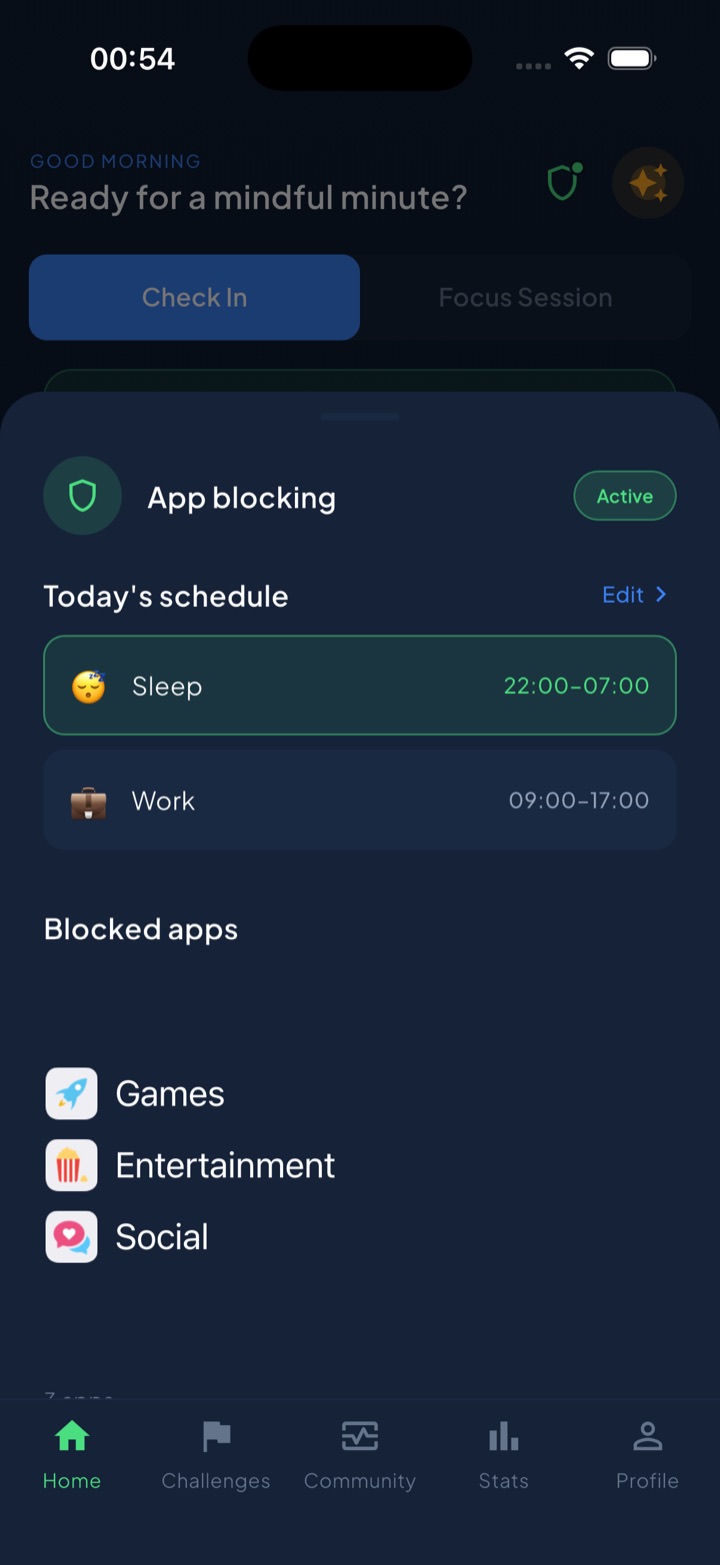
Unscrol uses Apple’s official Screen Time frameworks for real system-enforced shields — not overlay reminders you can swipe away — and leans on the three things that actually hold. You set scheduled blocking routines (Work 09:00–17:00, Sleep 22:00–07:00) in the cold state, so the wall is up before the urge arrives. There’s a deliberate short take-a-break bypass — a middle ground between soft nudges and prison-mode, so you release pressure instead of rage-deleting the app. And a unified daily streak means breaking a block costs something you’ve been building, with mood and urge check-ins to catch the craving before it wins. Which apps you block and your usage stats stay on your device — processed by iOS, never sent to Unscrol’s servers. It won’t make you unbypassable; nothing can. It just makes the bypass something you have to choose, out loud, instead of stumble into on autopilot.
Frequently asked questions
Is there an app blocker that can't be bypassed on iPhone?
Not really — and any app that claims to be truly unbypassable is overselling. Because you own the device and Apple hands you the keys, iOS always leaves an escape hatch: the 'Ignore Limit' button on Screen Time, the ability to delete and reinstall an app, or turning the blocker off in Settings. The realistic goal isn't a jail with no door. It's making the door inconvenient enough, and putting something you care about on the other side of it, so your automatic self doesn't wander through without noticing.
Why do I keep turning off my app blocker?
Usually for three reasons. First, self-sabotage in the moment: you bump the daily limit from one hour to two because deciding now, while craving, is easy. Second, the delete-and-reinstall loophole, which wipes the app's limit in about ten seconds. Third, habituation — after two to four weeks the pause or breathing screen stops registering and you tap through it on autopilot. The fix is to move the decision out of the craving moment: fixed schedule windows, not negotiable budgets, plus friction that stays novel and a small honest bypass so you don't rage-quit.
Does deleting and reinstalling an app get around Screen Time limits?
Yes — this is the most common loophole. On iOS, deleting an app and reinstalling it from the App Store often resets its Screen Time counter, so a limit you hit at noon is gone by 12:05. Scheduled blocking by app category is harder to dodge this way, because the block targets the whole category rather than one reinstalled app, and the window reasserts itself on a timer. It's still not impossible to bypass, but it removes the fastest one-tap escape most people rely on.