To turn off Screen Time on a Mac, open the Apple menu > System Settings > Screen Time, scroll to the bottom, and switch off App & Website Activity. On macOS Monterey and earlier, the same job is done by a Turn Off button at the bottom of the Screen Time pane in System Preferences. A Screen Time passcode, if you set one, is requested first. Switching it off stops tracking on that Mac, wipes its usage history, and removes the App Limits and Downtime schedules stored on it. The part that catches almost everyone out comes next: your iPhone limits do not disappear with it.

How do you turn off Screen Time on macOS?
The path depends on which macOS you are running, because Apple moved this control when System Preferences became System Settings:
macOS Ventura and later (System Settings)
- Open the Apple menu > System Settings.
- Click Screen Time in the sidebar.
- Scroll to the bottom of the panel.
- Toggle off App & Website Activity and confirm.
- Enter your Screen Time passcode if prompted.
macOS Monterey and earlier (System Preferences)
- Open Apple menu > System Preferences > Screen Time.
- Select Options at the bottom of the sidebar.
- Click Turn Off at the top right.
- Enter the passcode if prompted.
Either way, the reports go blank immediately and the schedules stored on that machine are gone. Turning it back on starts a fresh log — the previous weeks are not archived anywhere.
Why are my limits still there after turning it off?
This is the single most confusing thing about Screen Time on a Mac, and it has a simple explanation: Share Across Devices.
When that setting is on, every device signed in to the same Apple Account shares one combined usage report and one shared set of limits. Turning Screen Time off on the Mac removes it from the shared pool, but your iPhone and iPad still hold their own copies of the rules and keep enforcing them. Worse, if you delete a limit on the Mac while sharing is on and then sign back in, a sync can quietly restore it.
The order that avoids the mess:
- On each device, go to Screen Time and turn Share Across Devices off first.
- Now each device holds independent settings.
- Turn Screen Time off (or delete individual limits) device by device.
If you actually want a single unified picture of your usage across Mac, iPhone, and iPad, leave Share Across Devices on — just remember that the number in your weekly report is a combined total, which is why it so often looks higher than people expect.
What does turning it off delete?
Same trade as on iPhone: this is a reset, not a pause.
| What you lose | Turn off completely | Delete one App Limit |
|---|---|---|
| Daily and weekly usage reports | Erased | Kept |
| Historical data on that Mac | Gone for good | Kept |
| All App Limits | Removed | Only the one you choose |
| Downtime schedule | Removed | Kept |
| Content & Privacy Restrictions | Cleared | Kept |
| Communication limits | Cleared | Kept |
If the problem is one specific limit rather than the whole feature, go to System Settings > Screen Time > App Limits, select the limit, and remove it. You keep the reports and lose only the friction you did not want.
What if you forgot the Mac’s Screen Time passcode?
macOS will not let you disable tracking or edit limits without it. To reset:
- System Settings > Screen Time > Change Screen Time Passcode.
- Click Change Screen Time Passcode, then Forgot Passcode?
- Sign in with the Apple Account you used when you first set the passcode.
- Create a new one.
If the passcode was set before that recovery option existed, or the Mac is managed by an employer or school through a configuration profile, there is no user-side route around it — the administrator holds the key. Our forgotten Screen Time passcode guide covers the iOS side of the same problem in more depth.
Why Mac limits get ignored faster than phone limits
Worth naming, because it is the real reason most people end up on this page. Screen Time on a Mac is noticeably softer than on iPhone. Website blocking only reliably covers Safari, so a blocked site opens fine in Chrome or Firefox. Quitting an app and reopening it is frictionless. And the limit screen still offers the same one-click escape hatch it does on iOS.
So the honest sequence for most people is: set limits enthusiastically, ignore them within a fortnight, then come here to switch the whole thing off out of irritation. That is not weak willpower. A limit you can dismiss in one click was never a limit — it was a notification with extra steps. We unpack the mechanics in why screen time limits don’t work.
“I had App Limits on my MacBook for months and never once respected them. The block only worked in Safari, and I do everything in Chrome. Turning it off was just admitting what had already been true since week two.” — Marcus, backend developer, 34
What should you use instead?
Three realistic options, in ascending order of commitment:
- Keep tracking, delete the nagging limits. You keep an honest weekly number and lose the friction you were ignoring anyway. Nothing wrong with measuring without enforcing.
- Swap minute budgets for time windows. A daily allowance argues with you at 11pm. A schedule does not — the app is simply unavailable between the hours you chose. Compare the models in App Limits vs Downtime vs app blockers.
- Fix the phone first, not the laptop. For most people the Mac is not the real problem. Laptop time is largely work; phone time is largely the drift. If you are only going to fix one device, fix the one you pick up 90 times a day.
How does Unscrol help?
To be clear about scope: Unscrol is an iPhone and Apple Watch app, not a Mac app. If your problem is genuinely a laptop problem, macOS Screen Time plus a browser extension is the free answer, and you do not need us for it.
Where Unscrol fits is the device that survives every Mac cleanup: the phone in your pocket. It builds on the same Apple Screen Time frameworks, so blocks are system-enforced rather than a cosmetic overlay, but it replaces the dismissible daily budget with scheduled blocks — a work window, a sleep window — that shield whole app categories automatically, with a short, deliberate bypass for genuine exceptions instead of a one-tap “ignore”.
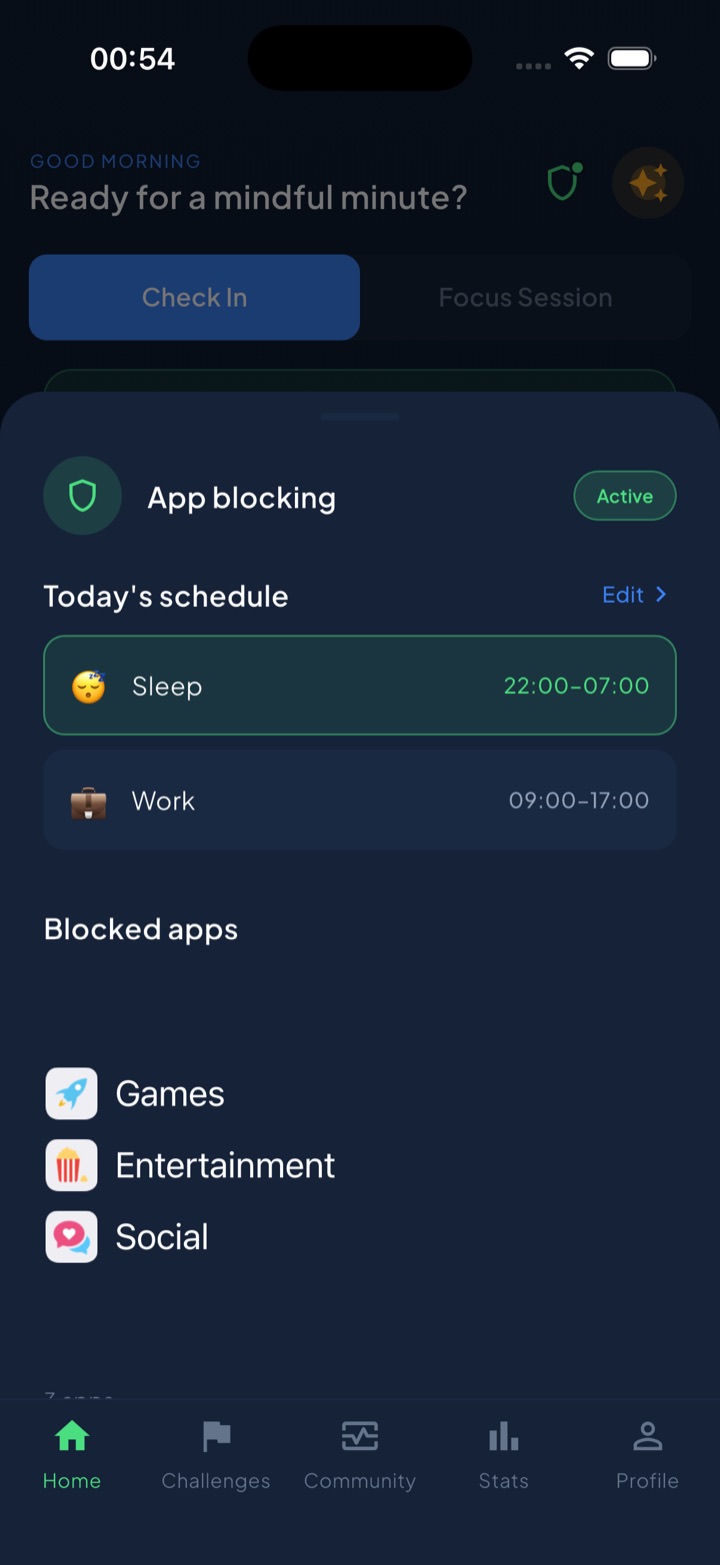
It also keeps the measurement you are about to delete. A guess-versus-real check asks for your estimate before revealing the actual number, and that gap tends to land harder than any chart. A unified daily streak grows on any day you complete a quick check-in or one of 45+ challenges, so the feedback loop rewards showing up rather than punishing overspend. Block lists and usage data stay on-device through iOS and never reach Unscrol’s servers. Free to download; the optional Pro tier adds a Streak Saver for rescuing a single missed day, twice a week.
Frequently asked questions
How do I turn off Screen Time on a Mac?
Open System Settings from the Apple menu, click Screen Time in the sidebar, and scroll to the bottom of the panel. Turn off App & Website Activity, then confirm. On macOS Monterey and earlier the control is a Turn Off button at the bottom right of the Screen Time pane, and on older versions you use Options in the sidebar. If a Screen Time passcode is set you must enter it first. Switching it off stops tracking on that Mac, clears its usage history, and removes the App Limits and Downtime schedules stored there.
Why do my iPhone limits still apply after turning Screen Time off on my Mac?
Because Share Across Devices keeps one shared set of limits for every device signed in to the same Apple Account. Turning Screen Time off on the Mac only affects that machine; the iPhone keeps its own copy of the schedule and continues enforcing it. If you want the limits gone everywhere you have to turn Screen Time off on each device individually, or turn off Share Across Devices first so each device holds its own independent settings. Doing it in that order avoids the confusing state where a deleted limit reappears after a sync.
Can I turn off Screen Time on a Mac without the passcode?
No. macOS requires the Screen Time passcode before letting you disable tracking or delete limits, exactly as iOS does. If you have forgotten it, open System Settings, go to Screen Time, choose Change Screen Time Passcode, then Forgot Passcode, and sign in with the Apple Account you used when you first created it. If the Mac is managed by a school or workplace through a configuration profile, the passcode belongs to the administrator and there is no user-side way around it.