If you forgot your Screen Time passcode, you almost never need to erase your iPhone. Open Settings > Screen Time > Change Screen Time Passcode, then tap “Forgot Passcode?” at the bottom of the keypad and sign in with the Apple Account (Apple ID) you used when you first set the passcode up. iOS resets it on the spot — you can pick a new code or switch Screen Time off. Parents reset a child’s passcode from their own device through Family Sharing. Only if the passcode was created before iOS 13.4 — or was never linked to an Apple Account — do you fall back to the erase-and-restore last resort. And whatever you do, skip the sketchy “passcode unlock” apps. But there’s an honest question hiding underneath all of this: why do you keep needing to break into your own phone?

How do I reset a forgotten Screen Time passcode on iPhone?
Apple built a proper recovery path back in iOS 13.4, so on any modern iPhone the fix takes about a minute:
- Open Settings and tap Screen Time.
- Scroll down and tap Change Screen Time Passcode, then tap Change Screen Time Passcode again on the pop-up.
- Tap “Forgot Passcode?” underneath the number keypad.
- Enter the Apple Account email and password you used when you created the passcode.
- Set a fresh passcode — or, if you’d rather remove it, back out and choose Turn Off Screen Time.
That’s it. No cables, no computer, no data loss. The one hard requirement is that you attached an Apple Account when you first turned Screen Time on. If you did, this recovery works even if you have genuinely no memory of the four digits.
What if “Forgot Passcode?” doesn’t appear or won’t work?
A few things trip people up here:
- You’re signing in with the wrong Apple Account. The reset only accepts the exact Apple ID that was signed in when the passcode was created — an old iCloud address, a family member’s account, or a work Apple ID can all cause a mismatch.
- No Apple Account was ever linked. If you skipped the “recovery” step during setup, iOS has nothing to verify against and the button may be missing.
- The passcode predates iOS 13.4. Very old setups never stored a recovery link at all.
When none of that works, the last resort is to erase the iPhone and set it up as new. Important and often missed: restoring from an iCloud or computer backup brings the old passcode straight back, because the code lives inside the backup. Truly clearing it means setting up as a new device — and losing your data — so back up your photos and files somewhere safe first and treat this as an absolute last resort.
How do parents reset a child’s Screen Time passcode?
If the locked passcode belongs to a child in your Family Sharing group, you don’t touch their phone at all — you fix it from yours:
- On the parent device, open Settings > Screen Time.
- Tap the child’s name under the Family section (or scroll to Family and choose them).
- Tap Change Screen Time Passcode, then Change Screen Time Passcode again, and set a new one.
If the child’s account was set up as their own Apple Account outside Family Sharing, you’ll instead use the “Forgot Passcode?” flow above with that child’s Apple ID. Either way, the official route keeps everything on Apple’s own servers — no third-party service ever sees the code.
Are Screen Time “recovery” and “unlock” apps safe?
Search this problem and you’ll be flooded with paid desktop tools promising to “remove Screen Time passcode instantly.” Treat them with suspicion. In practice most just automate Apple’s own erase-and-restore — the free thing you can already do — while charging $30 to $70 and asking you to turn off Find My and plug into a computer. That weakens your theft protection and hands your data to software you don’t control, for a result you could get for nothing. The only path worth trusting is Apple’s built-in reset tied to the Apple Account that set up the passcode.
Here’s the real problem: you set the passcode yourself
Now the part nobody tells you. If you set your own Screen Time passcode to curb your own scrolling, forgetting it isn’t the failure — it’s a symptom. A passcode only you know is a dissolvable commitment device, the digital version of hiding cookies in a cupboard you can open any time. The moment a craving hits, your brain doesn’t forget the code — it remembers it perfectly, taps “Ignore Limit” on the App Limit screen, and grants itself “just five more minutes.” That one-tap escape hatch is exactly why so many people conclude that screen time limits don’t work. Mechanically they’re fine; the weak point is that the same person sets and unlocks them.
The fix isn’t a better memory or a longer passcode. It’s a better design, where the off switch isn’t in your own pocket. Behavioral scientists call these commitment devices — arrangements that bind your future self to your present intentions:
| Limit design | Who holds the “off switch” | How long it survives a craving |
|---|---|---|
| A passcode you set yourself | You | Until the first strong urge |
| A passcode a partner or friend sets | Someone else | Weeks — you can’t undo it alone |
| A scheduled block that runs on a timer | A clock, not your willpower | Every day, no decision to make |
The second and third rows are the ones that hold. Hand the passcode to someone you trust and you can’t negotiate with yourself at 11 p.m. Or lean on automatic scheduled blocks that switch on and off by the clock, so there’s no in-the-moment decision to lose.
“I reset my Screen Time passcode four times in a month before it clicked — I wasn’t forgetting it, I was choosing to reset it every time TikTok called. I finally let my sister pick the code and set my blocks to a schedule. Suddenly there was nothing to negotiate with.”
— Priya, product designer, 29
How Unscrol helps you build a limit that actually holds
To be clear: Apple’s Screen Time is free, and you can go a long way with it — App Limits, Downtime, and the recovery flow above cost you nothing. Its real weakness isn’t power, it’s that the person tempted is also the person holding the reset button. That’s the gap Unscrol is designed to close, using the same official Apple Screen Time frameworks under the hood.
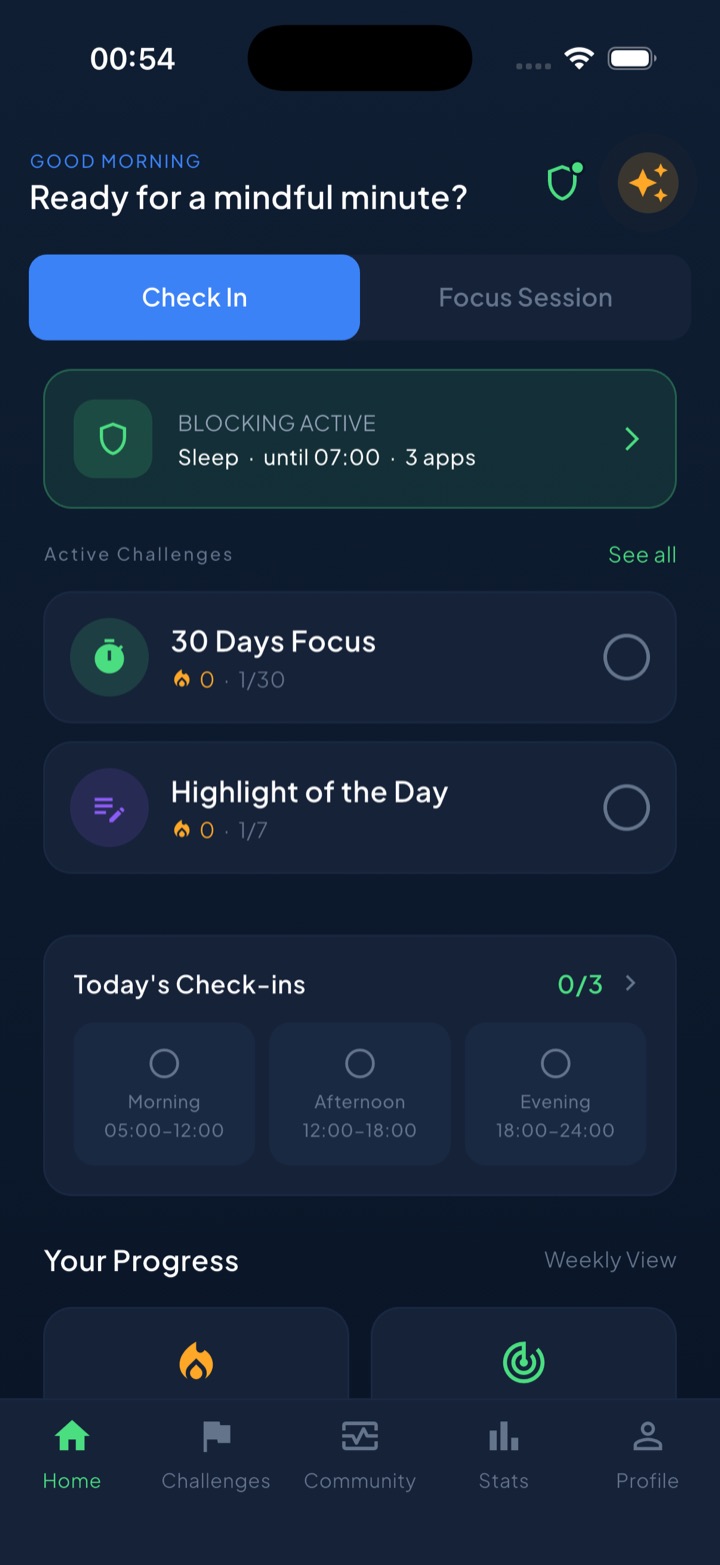
Instead of a single passcode you’ll break the instant you want to, Unscrol leans on scheduled routines — Work 09:00–17:00, Sleep 22:00–07:00 — that auto-block your chosen apps and categories on a timer you set once, so there’s no daily decision to cave on. When you genuinely need a distracting app, a short “take a break” bypass gives you a deliberate, time-boxed window rather than a one-tap “ignore” — a middle ground between a soft nudge and a prison lock. A unified daily streak and 45+ challenges make consistency something you can watch build, which matters far more than any single day of willpower. And because it runs on Apple’s Screen Time system, which apps you block and your usage stats stay on your device and never reach Unscrol’s servers.
If you’d rather stay with Apple’s built-in tools, that’s a completely valid choice — just give the passcode to someone else and lean on scheduled Downtime rather than manual limits. Either way, start with blocking apps on iPhone and a rundown of the best app blockers for iPhone. The tool matters less than the principle: the off switch shouldn’t live in the same hand that reaches for the phone.
Frequently asked questions
How do I reset my Screen Time passcode if I forgot it?
Open Settings, tap Screen Time, then Change Screen Time Passcode, and tap 'Forgot Passcode?' at the bottom of the keypad. Sign in with the Apple Account (Apple ID) email and password you used when you first created the passcode, and iOS lets you set a new one or turn Screen Time off entirely. This works on iOS 13.4 and later, as long as an Apple Account was linked during setup. You do not need to erase your iPhone or use any third-party tool.
Can I turn off Screen Time without the passcode?
Yes, if the passcode is tied to your Apple Account. Go to Settings, Screen Time, Change Screen Time Passcode, tap 'Forgot Passcode?', sign in with that Apple Account, and choose to turn Screen Time off. If no Apple Account was ever linked (or the passcode predates iOS 13.4), the only remaining route is to erase the device and set it up as new — restoring from a backup brings the old passcode back. Back up your photos and data first.
Are third-party Screen Time passcode recovery apps safe?
Be cautious. Most paid 'passcode unlock' tools ($30–$70) do not actually crack anything — they simply walk you through Apple's own erase-and-restore process, which you can do for free. Many require you to disable Find My and connect the phone to a computer, which risks your data and security for no real benefit. Apple's built-in 'Forgot Passcode?' reset, using the Apple Account that set up the passcode, is the safe and official path.