On iPhone, the honest answer is that App Limits cap how long you spend in specific apps each day, Downtime silences the whole phone on a schedule, and third-party blockers built on Apple’s Screen Time API add the one thing the built-in tools lack — friction strong enough that you don’t just tap “Ignore Limit” and carry on. All three use the same underlying Apple frameworks, so none of them can make an app impossible to open. The difference is entirely in how hard they make the moment of temptation, and how much they reward you for getting through it.
That’s the whole decision. Apple’s tools are genuinely good for some jobs and quietly useless for others — and knowing which is which saves you from overpaying or giving up.
What exactly are App Limits, Downtime, and Content Restrictions?
Apple’s Screen Time bundles four distinct tools that people constantly mix up:
- App Limits — a per-app or per-category daily budget. Set Social to 30 minutes and once you’ve spent it, every social app greys out behind a “Time Limit” screen. Great for capping a habit without banning it.
- Downtime — a whole-phone schedule. During the window you pick (say 22:00–07:00), everything locks except what you’ve whitelisted. It’s the closest Apple gets to a “put the phone down” switch.
- Always Allowed — the whitelist that survives Downtime. Phone, Messages and Maps stay open so you’re never cut off from the essentials.
- Content & Privacy Restrictions — category-level blocks for explicit content, App Store installs and the like. Useful for setup hygiene, not for daily focus.

If you want a fuller walkthrough of setting these up, our guide to how to block apps on iPhone covers the taps step by step.
When is Apple’s built-in Screen Time enough?
Plenty of the time, honestly. Screen Time is free, already on your phone, and — for predictable, scheduled restraint — it does the job:
- Sleep protection. A Downtime window from bedtime to morning, with only Phone and Messages on Always Allowed, is a solid defence against 1am scrolling.
- A soft daily ceiling. A 45-minute Social limit won’t stop a determined relapse, but it makes you notice the fifth time you open Instagram, which is often enough.
- Kid and family setups. What Screen Time was actually designed for — with a parent-held passcode it works well.
The rule of thumb: if your enemy is the clock, Screen Time is enough. If your enemy is your own impulse in a weak moment, keep reading.
Where do App Limits and Downtime break down?
The failure points are consistent, and they’re baked into the design rather than being bugs:
- The one-tap “Ignore Limit” button. When a limit hits, iOS offers “One More Minute,” “Remind Me in 15 Minutes,” and “Ignore Limit For Today” — right there on the block screen. Without a passcode, it’s a single tap back to the feed.
- You know your own passcode. Set a Screen Time passcode and the bypass at least requires a code — but you chose it, so within days you’re typing it on autopilot. A commitment device you can instantly reverse isn’t much of a commitment.
- No per-feature control. Screen Time blocks whole apps, not features. You can’t allow YouTube subscriptions while blocking Shorts, or DMs while blocking the Reels tab. It’s all-or-nothing.
- Well-known escape hatches. Opening a site in Safari instead of the app, or changing the system clock, has long defeated naive setups.
We dug into exactly why this happens in why screen time limits don’t work — the short version is that Apple built a parental-control tool and asked it to also be a self-control tool, and those are different jobs.
“I had Downtime and a Social limit set for months. It made no difference — I’d hit the limit, tap Ignore, and not even remember doing it. What finally worked was a block I had to consciously end, plus a streak I didn’t want to break. Same Apple frameworks underneath, completely different result.” — Priya, UX designer, 29
What do third-party app blockers add?
Since iOS 15 — and for personal, non-family use since iOS 16 — third-party apps can use the same Screen Time API (Family Controls, Managed Settings, Device Activity) that powers Downtime — so they enforce real, system-level shields, not fake overlays. What they layer on top is where they earn their keep:
- Stronger friction to quit early. Instead of a one-tap “Ignore,” ending a block becomes a deliberate, slightly effortful action — enough to break the reflex.
- Per-app-group schedules. Different routines for Work (09:00–17:00), Sleep (22:00–07:00) and deep-focus sessions, each blocking a different set of apps or categories.
- A “take a break” middle ground. The good ones offer a short, honest bypass for genuine needs — a deliberate compromise between soft nudges you’ll ignore and prison-style locks you’ll resent and delete.
- Streaks and gamification. A visible daily streak turns “don’t scroll” from nagging into progress — and streaks build habits precisely because they make consistency feel like something you own.
They usually cost money, though — Opal runs around $99.99/year, hardware like Brick is about $59 — so weigh that against the free tools. Our Opal vs Freedom vs Unscrol comparison breaks down the paid options.
App Limits vs Downtime vs blockers: the comparison table
| Tool | What it does | How easy to bypass | Best for |
|---|---|---|---|
| App Limits | Daily minute budget per app/category | Very easy — one-tap “Ignore Limit” | Noticing overuse, soft daily ceiling |
| Downtime | Whole-phone lockdown on a schedule | Easy — “Ask for More Time” / Ignore | Sleep, fixed quiet hours |
| Always Allowed | Whitelist kept open during Downtime | N/A (it’s the exception, not a block) | Keeping essentials reachable |
| Content Restrictions | Blocks explicit content, installs | Moderate — needs the passcode | One-time device setup |
| Third-party blocker (Screen Time API) | Scheduled shields + friction + streaks | Hard — ending a block is deliberate | Impulse control, building a real habit |
The pattern is clear: Apple’s tools are excellent at scheduling and weak at resisting you in the moment — and that gap is the entire reason the paid category exists.
How does Unscrol fit App Limits and Downtime together?
Everything above is free with Apple’s Screen Time, and if scheduled blocking solves your problem, start there — genuinely. Unscrol exists for the harder case: when the built-in tools keep getting ignored and you want the block to actually hold.
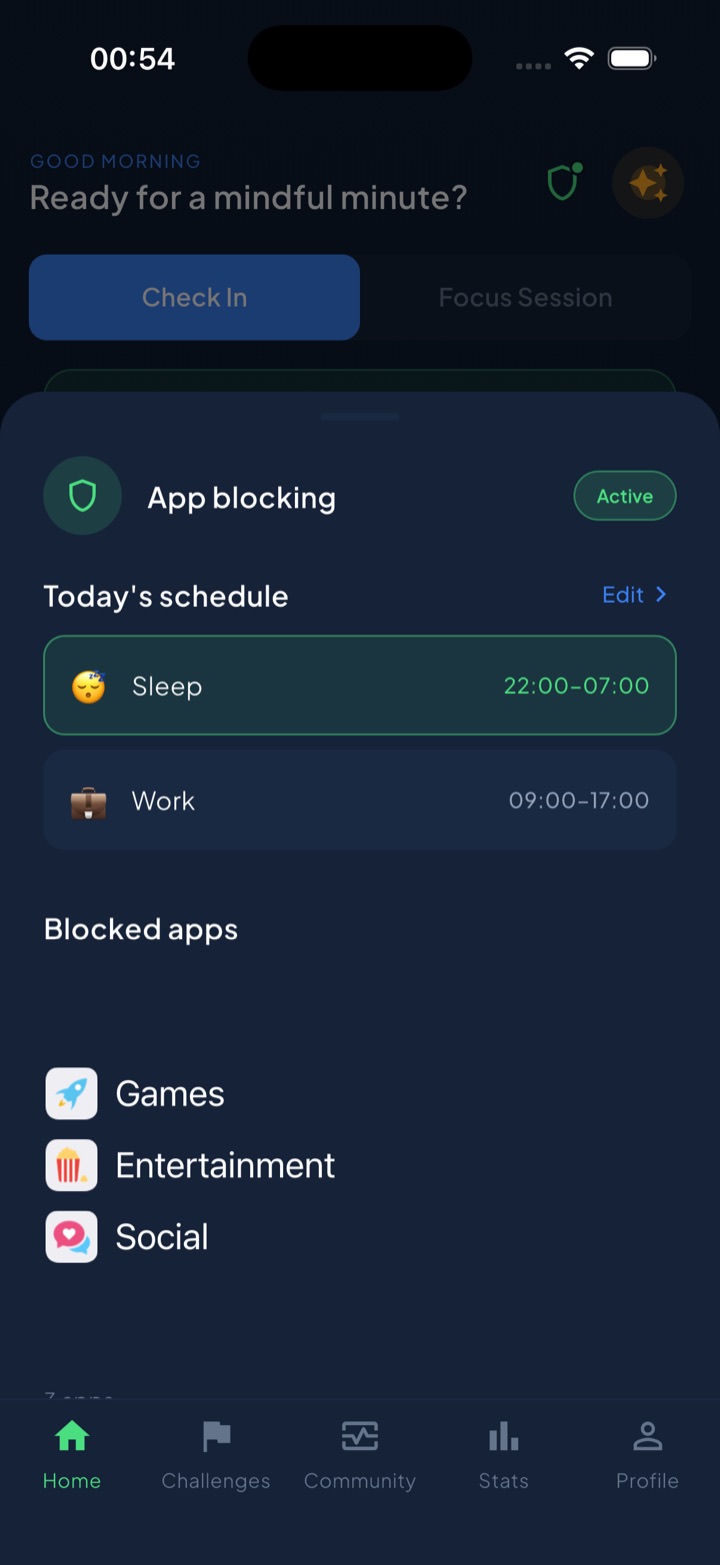
It runs on iPhone and Apple Watch, entirely on Apple’s Screen Time frameworks, and pulls the pieces into one place:
- Scheduled routines like Work and Sleep auto-block your chosen apps and categories — Downtime’s idea, but per-routine and harder to shrug off.
- Focus sessions shield distractions for a wall-clock countdown you can watch in the Dynamic Island and on the Lock Screen.
- A short “take a break” bypass for real needs, so it’s a middle ground rather than a cage — but ending a block early is a conscious act, not a reflex tap.
- A unified daily streak and 45+ challenges that reward consistency, because staying clean should feel like winning, not just being walled off.
One honesty note: which apps you block and your usage stats are processed on-device by iOS and never reach Unscrol’s servers — Apple’s opaque tokens make that possible. Unscrol’s real job isn’t to do something Screen Time can’t; it’s to make the version you’ll actually stick with.
Frequently asked questions
What's the difference between App Limits and Downtime on iPhone?
App Limits set a daily time budget for one app or a whole category — say 30 minutes of Social — and grey the app out once you hit it. Downtime is a scheduled window (like 22:00–07:00) where the entire phone locks down except the apps on your Always Allowed list plus phone calls. In short: App Limits cap individual apps by the minute, Downtime silences everything at once on a schedule. Most people use both together — limits for daytime restraint, Downtime for sleep.
Why can I still open apps after a Screen Time limit?
Because the limit screen shows an 'Ignore Limit' button. If you never set a separate Screen Time passcode, one tap on 'Ignore Limit For Today' unlocks the app instantly with zero friction. Even with a passcode, you know the code, so it's a short pause rather than a real wall. Screen Time was built for parents managing children, not adults managing themselves — when you're both the guard and the prisoner, the one-tap bypass is the whole problem.
Do I need a third-party app blocker if I already have Screen Time?
Not necessarily. If your problem is a fixed schedule — no social media after 10pm, no games during work — free App Limits and Downtime handle it well, so configure those first. A third-party blocker built on Apple's Screen Time API earns its place when the built-in tools keep getting ignored: it adds stronger friction to end a block early, per-app-group schedules, and a streak or challenge layer that rewards staying clean instead of just walling you off.