To turn off Screen Time on an iPhone, open Settings > Screen Time, scroll to the very bottom, and tap “Turn Off App & Website Activity” (older iOS versions call it “Turn Off Screen Time”). Confirm the prompt, and tracking stops instantly. If you set a Screen Time passcode, iOS asks for it first. Be aware of what this does: it deletes your usage reports, and it removes every App Limit and Downtime schedule you built. That is the entire mechanic — three taps. The harder question is the one underneath it: why are you turning it off? Most people reach this page because the reports feel useless or the limits nag without helping, and for those problems, switching everything off is rarely the fix you actually want.

How do you turn off Screen Time on iPhone?
The full switch-off lives at the bottom of the Screen Time menu, not at the top where the toggles are:
- Open Settings and tap Screen Time.
- Scroll past App Limits, Downtime, and the rest — all the way to the bottom.
- Tap Turn Off App & Website Activity (or Turn Off Screen Time on iOS 15 and earlier).
- If prompted, enter your Screen Time passcode.
- Confirm. The reports go blank and every schedule you built disappears.
If you only want to remove one or two App Limits rather than kill the whole feature, don’t use this button. Instead tap Settings > Screen Time > App Limits, choose the app or category, and tap Delete Limit. That leaves tracking on so you keep your reports, and it removes only the specific budget that was bothering you.
What does turning off Screen Time delete?
Turning it off is not a pause — it is a reset. Here is what goes when you flip it off versus what a targeted delete leaves alone:
| What you lose | Full turn-off | Delete one App Limit |
|---|---|---|
| Daily & weekly usage reports | Erased | Kept |
| Historical data (pickups, notifications) | Gone for good | Kept |
| All App Limits | Removed | Only the one you pick |
| Downtime schedule | Removed | Kept |
| Always Allowed & Communication Limits | Cleared | Kept |
| Content & Privacy Restrictions | Cleared | Kept |
The part people regret most is losing the historical usage data. Those charts are the mirror — the one place your phone honestly tells you how many hours went to which app. Turn tracking off and the mirror goes dark. You can switch it back on later, but the weeks in between simply won’t exist.
What if you forgot your Screen Time passcode?
If a passcode is set, iOS will not let you turn Screen Time off or delete limits until you enter it — that is the whole point of the passcode. If you no longer remember it, you can reset it without wiping the phone in most cases:
- Go to Settings > Screen Time > Change Screen Time Passcode.
- Tap Change Screen Time Passcode, then Forgot Passcode?
- Sign in with the Apple Account (Apple ID) you used when you first set the passcode.
- Create a new passcode — now you can change or turn off any limit.
If the Apple Account reset doesn’t work (common on devices set up second-hand or before iOS 13.4), the only remaining route is erasing the iPhone and setting it up as new, which deletes everything. There is a full walkthrough in our guide on what to do when you forgot your Screen Time passcode.
Should you actually turn Screen Time off?
Here is the honest pivot. Two complaints send people to that off switch, and neither is really solved by it.
“The reports feel broken or wrong.” Apple’s numbers are directionally accurate but easy to misread — a podcast playing with the screen off can inflate a category, and “Spotify: 4h” doesn’t tell you whether that was focused work or four hours of doomscrolling with music on. The reports feeling off is a reason to read them better, not to blind yourself.
“The limits just nag and I ignore them.” This is the real one. When you hit an App Limit, iOS shows a screen with a single tempting button: Ignore Limit (choose “Ignore Limit For Today” and it’s gone). After you tap it a few times, the limit stops meaning anything — it’s a speed bump you’ve learned to drive over. That’s not a willpower failure; it’s a design flaw. A limit you can dismiss in one tap was never really a limit. We unpack exactly why in why screen time limits don’t work.
“I turned Screen Time off in a huff after ignoring the Instagram limit for the hundredth time. Two weeks later I had no idea if I’d gotten better or worse — I’d deleted my only scoreboard. Turning it back on and fixing the limits instead was the smarter move.” — Daniel, product designer, 31
The takeaway: losing your usage data means losing the mirror. If the tool feels broken, the fix is almost always better-designed limits, not zero visibility.
What should you use instead?
You have three real options, and only one of them is “turn everything off”:
- Keep reports, delete just the annoying limits. Leave App & Website Activity on so you still see your numbers, and remove only the specific App Limits that were nagging. You keep the mirror and lose the friction you didn’t want.
- Replace nagging budgets with scheduled blocks. Instead of a daily minute budget you’ll ignore, block a category during set windows — apps off 22:00–07:00 for sleep, or 09:00–17:00 for work. A schedule doesn’t argue with you at 11pm; the app is simply unavailable. Compare the approaches in App Limits vs Downtime vs app blockers.
- Use a blocker with real enforcement. If “Ignore Limit” is your problem, the answer is friction that isn’t one tap away — a shield you can’t casually dismiss, plus honest reporting so you keep the mirror. See how to block apps on iPhone.
How does Unscrol help when Screen Time isn’t working?
Before anything else: you can do all of this with Apple’s built-in tools for free. Screen Time’s reports, App Limits, and Downtime cost nothing, and if a targeted delete or a Downtime schedule fixes your problem, you don’t need another app. Unscrol is for the case where the built-in limits keep getting ignored and you want something more consistent.
Unscrol is an iPhone and Apple Watch app that builds on the exact same Apple Screen Time frameworks — so its blocks are system-enforced, not a fake overlay — but wraps them in scheduling and reporting that are harder to shrug off. Instead of a nag you dismiss, you set scheduled blocks (a Sleep window, a Work window) that shield whole app categories automatically, with a deliberate short “take a break” bypass for the genuine exceptions.
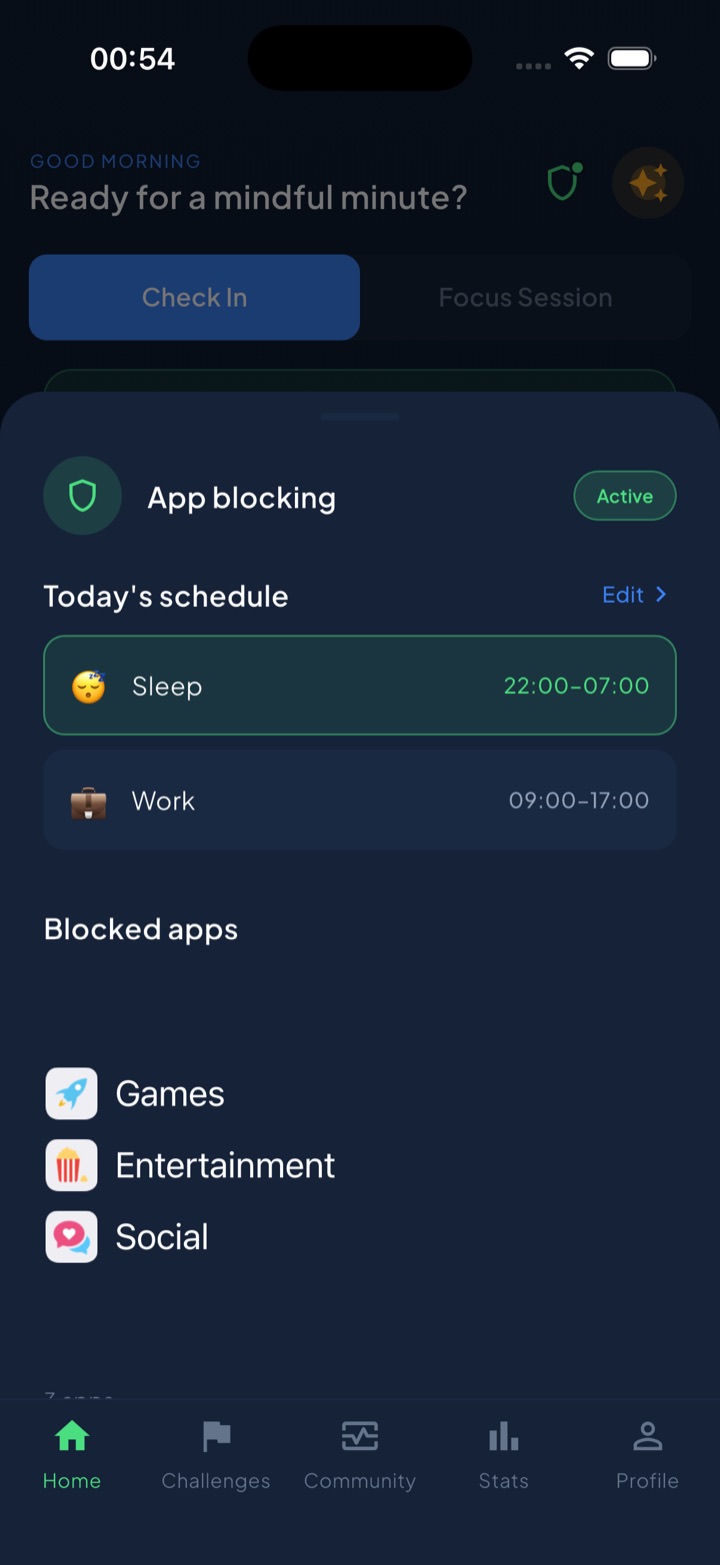
It also keeps the mirror pointed at you: an honest guess-vs-real report asks you to estimate your usage first, then shows the actual number — the gap is usually the wake-up call the raw chart never delivered. A unified daily streak grows every day you do a quick mood or urge check-in or finish one of 45+ challenges, so progress feels like something you’re building rather than a budget you’re failing. Block lists and usage stats are processed on-device by iOS and never reach Unscrol’s servers. It’s free to download; the optional Pro tier adds only a Streak Saver (twice a week, to rescue a single missed day). If Apple’s tools already work for you, keep them. If you’re here because they don’t, that’s the gap Unscrol is built to close.
Frequently asked questions
How do I turn off Screen Time on my iPhone?
Open Settings and tap Screen Time, then scroll to the very bottom. On newer iOS, tap Turn Off App & Website Activity; on older versions, tap Turn Off Screen Time. Confirm when asked. If a Screen Time passcode is set, iOS requests it before letting you switch anything off. This stops all tracking immediately, hides your daily and weekly reports, and clears every App Limit and Downtime schedule. You can turn tracking back on later, but the historical usage data collected while it was off is gone for good.
Does turning off Screen Time delete my data?
Yes. Turning off App & Website Activity erases your usage history and stops new data from being recorded, so your daily and weekly report charts disappear. It also deletes every App Limit, Downtime window, and Communication Limit you configured. Always Allowed and Content & Privacy Restrictions settings are cleared too. This data lives on your device; if Share Across Devices is on, it syncs only end-to-end encrypted through iCloud. If you only want to remove the nagging limits but keep seeing your numbers, delete the individual limits instead and leave tracking on.
Can I turn off Screen Time without the passcode?
No — if a Screen Time passcode is set, iOS will not let you disable Screen Time or remove limits until you enter it. If you have forgotten it, go to Settings, Screen Time, tap Change Screen Time Passcode, then Forgot Passcode, and sign in with the Apple Account you used when you set it up to reset it. If that fails, the last resort is erasing the iPhone and setting it up as new, which wipes everything. There is no legitimate way to bypass the passcode without one of these steps.