App & Website Activity is the master switch for Screen Time. It sits at the very bottom of Settings > Screen Time, and it is the thing that decides whether iOS records your usage at all. Turn it off and three things happen at once: tracking stops, your usage history is erased, and every App Limit and Downtime schedule you built is deleted. Turn it back on and recording restarts from zero — the weeks in between simply do not exist. Most people find this screen for one of two reasons: they want the tracking gone, or their numbers stopped making sense and they are trying to work out why.

What does App & Website Activity actually record?
More than most people assume. With the switch on, iOS logs:
- Time per app, grouped into categories like Social, Entertainment, and Productivity
- Website categories you visit in Safari (not individual URLs in your reports)
- Pickups — how many times you woke the phone, and which app you opened first
- Notifications — how many you received and from which apps
- Time on each device, merged if Share Across Devices is on
This log is not just a report. It is the measurement layer everything else in Screen Time sits on. App Limits need it to know when you have used forty minutes of TikTok. Downtime needs it to know what is running. Communication Limits need it to know who you are talking to. That is why the off switch is destructive rather than cosmetic: you are not hiding a chart, you are removing the sensor.
How do you turn App & Website Activity on or off?
The switch is at the bottom of the menu, not the top where the feature toggles live:
- Open Settings and tap Screen Time.
- Scroll past App Limits, Downtime, Always Allowed, and Content & Privacy Restrictions — all the way down.
- Tap Turn Off App & Website Activity. On iOS 15 and earlier, the button reads Turn Off Screen Time.
- Enter your Screen Time passcode if you set one.
- Confirm.
To turn it back on, the same spot now reads Turn On App & Website Activity. Recording begins immediately, but your old data does not come back — it was deleted, not archived.
If your real goal is to get rid of one nagging limit rather than the whole feature, do not use this button. Go to Settings > Screen Time > App Limits, tap the limit, and choose Delete Limit. You keep your reports and lose only the thing that was bothering you. There is a full walkthrough in our guide to turning off Screen Time.
Why does App & Website Activity keep turning itself off?
This is the most common complaint, and it almost always traces to one of a handful of causes:
| What you see | Likely cause | Fix |
|---|---|---|
| Switch is off after an iOS update | Major updates occasionally reset the toggle | Turn it back on; set a passcode so it needs authentication |
| Off after restoring from a backup | Screen Time settings do not always survive a restore | Re-enable and rebuild limits |
| Off on a child’s iPhone | A guardian switched it off remotely via Family Sharing | Check the organiser’s device in Family settings |
| Greyed out entirely | The device is supervised by an MDM profile (school or work) | Only the administrator can change it |
| Data vanished but switch is on | Share Across Devices merged or split your history | Check the same setting on every signed-in device |
If it happens over and over with none of these explanations, the practical fix is a Screen Time passcode. With one set, nothing can be turned off without someone deliberately typing four digits — which rules out both accidental taps and the version of yourself that gets impatient at 11pm.
Why is my Screen Time data wrong or missing?
Apple’s numbers are directionally honest but easy to misread. Four things trip people up constantly:
Background audio counts. A podcast playing with the screen off can log hours against Spotify or YouTube. Your “4h entertainment” may have been a commute, not a binge.
Reporting lags. Today’s figures update through the day and settle overnight. Comparing this morning’s number to last week’s finished total will always look wrong.
Multiple devices merge. With Share Across Devices on, iPad and Mac time land in the same report. That is usually what people mean when they say the number “seems too high”.
Categories are coarse. Screen Time reports Safari as one block and website categories rather than individual sites, so a single browser tab habit hides inside a generic bucket. That is a real gap if the site you are losing hours to lives in a browser rather than an app — see how to block websites on iPhone.
Is App & Website Activity a privacy risk?
Reasonably, no. The activity log is generated and stored on your device. If Share Across Devices is enabled it syncs through iCloud, where Apple states Screen Time data is end-to-end encrypted. Safari reporting works at the category level in your reports rather than publishing a list of every page you opened, and Private Browsing sessions are not itemised in the report.
The genuine privacy question is a different one: who else can see it. On a device inside Family Sharing, the family organiser can view the child’s reports and set limits remotely. On a work or school device with a management profile, the administrator controls these settings and the toggle may be greyed out entirely. Neither is a bug — but both are worth knowing before you assume the numbers are private to you.
Should you turn it off at all?
Here is the honest answer. Two frustrations drive people to that switch, and only one of them is real.
The first is “the numbers feel wrong”. Usually they are not wrong, they are just coarse — background audio and merged devices explain most of it. Blinding yourself does not fix a measurement you have misread.
The second is “the limits nag and I ignore them anyway”. That one is legitimate, and it is a design problem rather than a willpower problem. When you hit an App Limit, iOS offers a single button — Ignore Limit — and after you tap it a few times the limit stops carrying any weight. But notice what turning off App & Website Activity does to that problem: it removes the limits and the scoreboard. You lose the nag and the feedback in one move, which leaves you with no idea whether things are getting better or worse.
“I killed App & Website Activity the night I ignored my Instagram limit for the fifth time in a row. It felt great for a week. Then I genuinely could not tell you if I was using my phone more or less than before — I had smashed the only mirror I had.” — Priya, marketing lead, 29
The rule of thumb: delete the limits that annoy you, keep the tracking that informs you.
How does Unscrol help when Screen Time isn’t working?
First, the honest part: Apple’s tools are free and often enough. If deleting one App Limit or setting a Downtime window fixes your problem, you do not need another app. Unscrol is for the case where the built-in limits keep getting ignored and the reports never turn into a change.
Unscrol is an iPhone and Apple Watch app built on the same Apple Screen Time frameworks, so its blocks are system-enforced rather than a cosmetic overlay. Instead of a daily minute budget with a dismiss button, you set scheduled blocks — a sleep window, a work window — that shield whole categories automatically, with a short, deliberate “take a break” bypass for genuine exceptions.
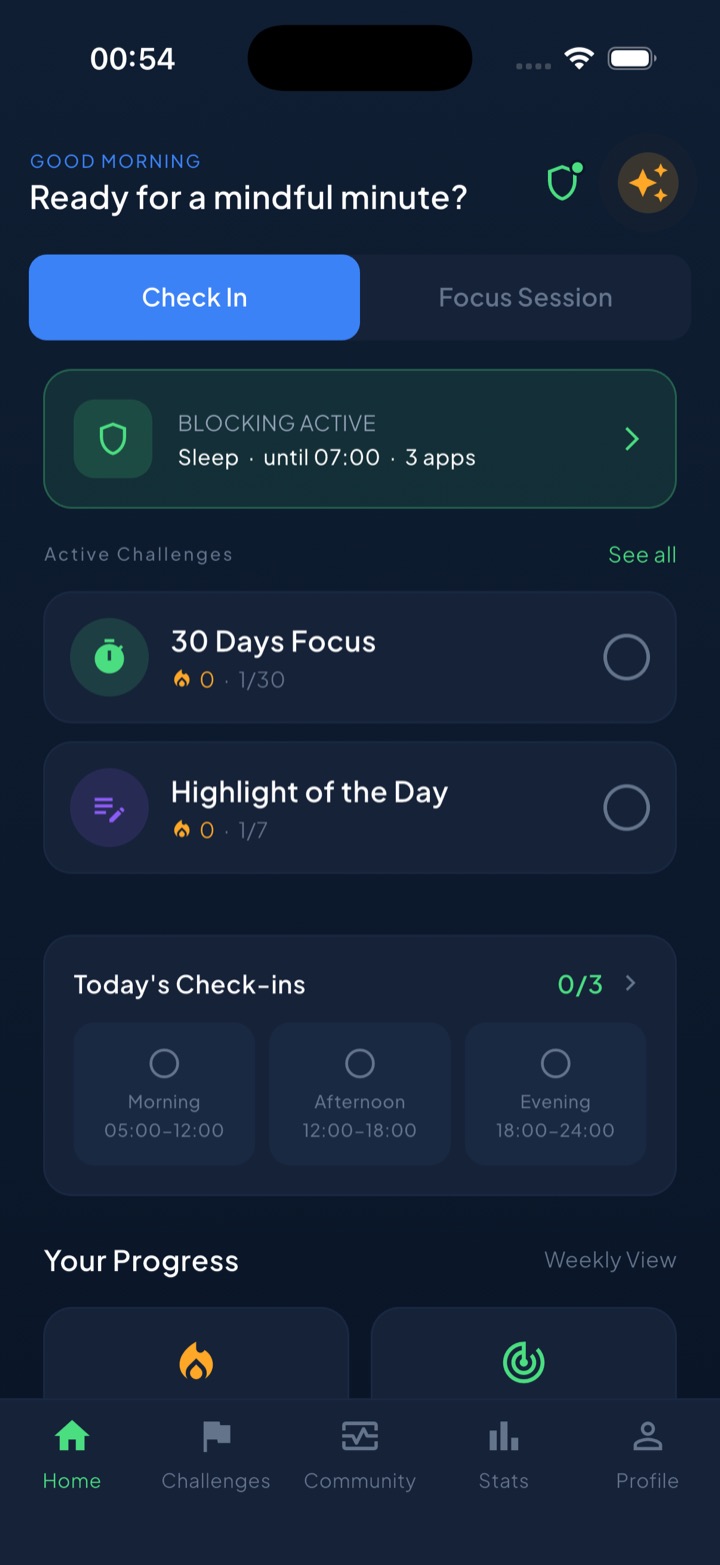
It also keeps a mirror pointed at you rather than replacing it. A guess-versus-real check asks you to estimate your usage before showing the real figure, and the gap between the two is usually more persuasive than the raw chart ever was. A unified daily streak grows on any day you do a quick check-in or finish one of 45+ challenges, so progress reads as something you are building instead of a budget you keep failing. Your block lists and usage data are processed on-device by iOS and never reach Unscrol’s servers. It is free to download, and the optional Pro tier adds a Streak Saver that rescues a single missed day twice a week. If Apple’s reports already change your behaviour, keep them. If they only ever made you feel bad, that is the gap worth closing.
Frequently asked questions
What is App & Website Activity in Screen Time?
App & Website Activity is the master switch that makes Screen Time record anything at all. When it is on, iOS logs which apps you open, how long you use them, which website categories you visit in Safari, how many times you pick the phone up, and how many notifications you receive. That log is what powers the daily and weekly reports. It is also a prerequisite for App Limits and Downtime — those features have nothing to measure without it. Turning it off does not just hide the charts; it stops the recording and deletes the history behind them.
How do I turn off App & Website Activity?
Open Settings, tap Screen Time, and scroll to the very bottom of the page, past App Limits, Downtime, and Content & Privacy Restrictions. Tap Turn Off App & Website Activity and confirm. If a Screen Time passcode is set, iOS asks for it first and will not proceed without it. On iOS 15 and earlier the same button is labelled Turn Off Screen Time. Tracking stops the moment you confirm, your reports go blank, and every App Limit and Downtime schedule you built is removed at the same time.
Why does App & Website Activity keep turning itself off?
The usual causes are a major iOS update that resets the toggle, restoring the iPhone from a backup, or a change to the Apple Account signed in on the device. On a child's device managed through Family Sharing, a parent or guardian can switch it off remotely, which looks like a spontaneous reset from the child's side. Share Across Devices being toggled on a second iPhone or iPad can also make data appear to vanish when it is really being merged. If it happens repeatedly with none of those, set a Screen Time passcode — that prevents anything but a deliberate, authenticated change.