To block a website on your iPhone, open Settings → Screen Time → Content & Privacy Restrictions → Content Restrictions → Web Content, then either turn on “Limit Adult Websites” and add specific URLs under “Never Allow,” or choose “Allowed Websites Only” for a strict whitelist. Because this restriction is enforced by iOS itself, it applies in Safari and other browsers and even switches off Private Browsing. Lock it behind a Screen Time passcode that is not your unlock code, and the block holds until you deliberately remove it. That last part is the whole game — every website block on iPhone is only as strong as your willingness to leave it alone.

How do you block a website on iPhone in Safari?
Apple hides website blocking inside Screen Time rather than Safari’s own settings, which is why most people never find it. Here is the full path:
- Open Settings and tap Screen Time.
- Tap Content & Privacy Restrictions and toggle it on.
- Tap Content Restrictions, then Web Content.
- Choose Limit Adult Websites. This auto-blocks known adult sites and, importantly, turns off Safari’s Private Browsing.
- Under Never Allow, tap Add Website and type the URL you want gone —
reddit.com,youtube.com,x.com, whatever pulls you in. - Scroll back up and set a Screen Time passcode (Settings → Screen Time → Lock Screen Time Settings). Use four digits you do not use to unlock the phone.
For a nuclear option, pick Allowed Websites Only instead of Limit Adult Websites. This flips the logic: nothing loads except the handful of sites you add. It is heavy-handed but genuinely useful for a study device or a phone you want stripped down to essentials. If your goal is broader than one or two sites, our guide to reducing your screen time covers the wider settings worth changing.
Does blocking websites work in Chrome and other browsers?
Mostly, yes — with one big asterisk. The Never Allow list is a system-level content filter, so a site you ban there typically fails to load in Chrome, Firefox, Edge and Brave too, not just Safari. Every browser on iOS ultimately renders through Apple’s WebKit and respects the same content rules.
The asterisk is the other method people try: App Limits. You can add a specific website under Screen Time → App Limits and give it a daily time cap. The problem is that App Limits only measures the time you spend on that site in Safari. Open the same site in Chrome and the timer never ticks. So if you rely on App Limits alone to fence off a distracting site, switching browsers is a two-tap escape hatch. Use the Never Allow list for a genuine block; treat App Limits as a soft nudge at best.
What are the loopholes in iPhone website blocking?
Honesty matters here, because the gaps are exactly where good intentions leak out at 11pm:
- App Limits ignore other browsers. As above, a per-site App Limit only counts Safari, so Chrome, Firefox and in-app browsers walk straight past it.
- The “Ignore Limit” button. When an App Limit runs out, iOS shows a screen with an “Ignore Limit” option — one tap gives you 15 more minutes or the rest of the day. It is a speed bump, not a wall.
- Private browsing and in-app browsers. Limit Adult Websites disables Safari’s private mode, but content opened inside other apps’ built-in browsers can behave inconsistently.
- The passcode you already know. This is the real one. You set the Screen Time passcode, so during a craving you can undo any block in about ten seconds. That is not a personal failing — it is the design. We wrote a whole piece on why screen-time limits so often fail, and the short version is: a lock you hold the key to is a lock you will open.
Paid tools try to add friction around this. Opal (around $99.99/year) and the physical Brick tag (around $59) both exist mainly to make un-blocking annoying enough that you do not bother. That is the right instinct — the block has to outlast the urge.
Should you block the website or the whole app?
Here is the reframe that saves most people a lot of fiddling. Maintaining a URL blacklist is a losing game: sites have a dozen domains, apps open their own browsers, and you forget the ones that hook you. For focused work, blocking the browser app for a block of hours beats micromanaging individual websites. No Safari means no Reddit, no news, no rabbit holes — without you having to name every rabbit hole in advance.
“I spent months adding sites to my Never Allow list and I always found a new one to waste time on. What finally worked was just blocking Safari and Chrome entirely from 9 to 12 every morning. My deep-work sessions doubled.”
— Marcus, freelance designer, 34
Here is how the two philosophies compare:
| Approach | What it does | Covers Chrome & other browsers? | Best for |
|---|---|---|---|
| Never Allow list (Web Content) | Permanently blocks specific URLs | Yes, system-wide | A fixed blocklist (adult sites, one time-sink) |
| Allowed Websites Only | Whitelist — only listed sites load | Yes, system-wide | A locked-down study or kid device |
| App Limits on a site | Daily time cap on one URL | No — Safari only | A gentle daily nudge |
| Block the browser app on a schedule | Makes the whole browser unavailable for set hours | Yes — blocks the apps themselves | Deep-work and focus blocks |
If you want the step-by-step for that last row, our guide on how to block apps on iPhone walks through the Family Controls path in detail.
How does Unscrol help you block distractions without chasing URLs?
First, the honest part: everything above is free with Apple’s built-in Screen Time. If a short Never Allow list plus a passcode your partner keeps is enough for you, you do not need another app — go do that. Apple gives you real, system-enforced website blocking at no cost.
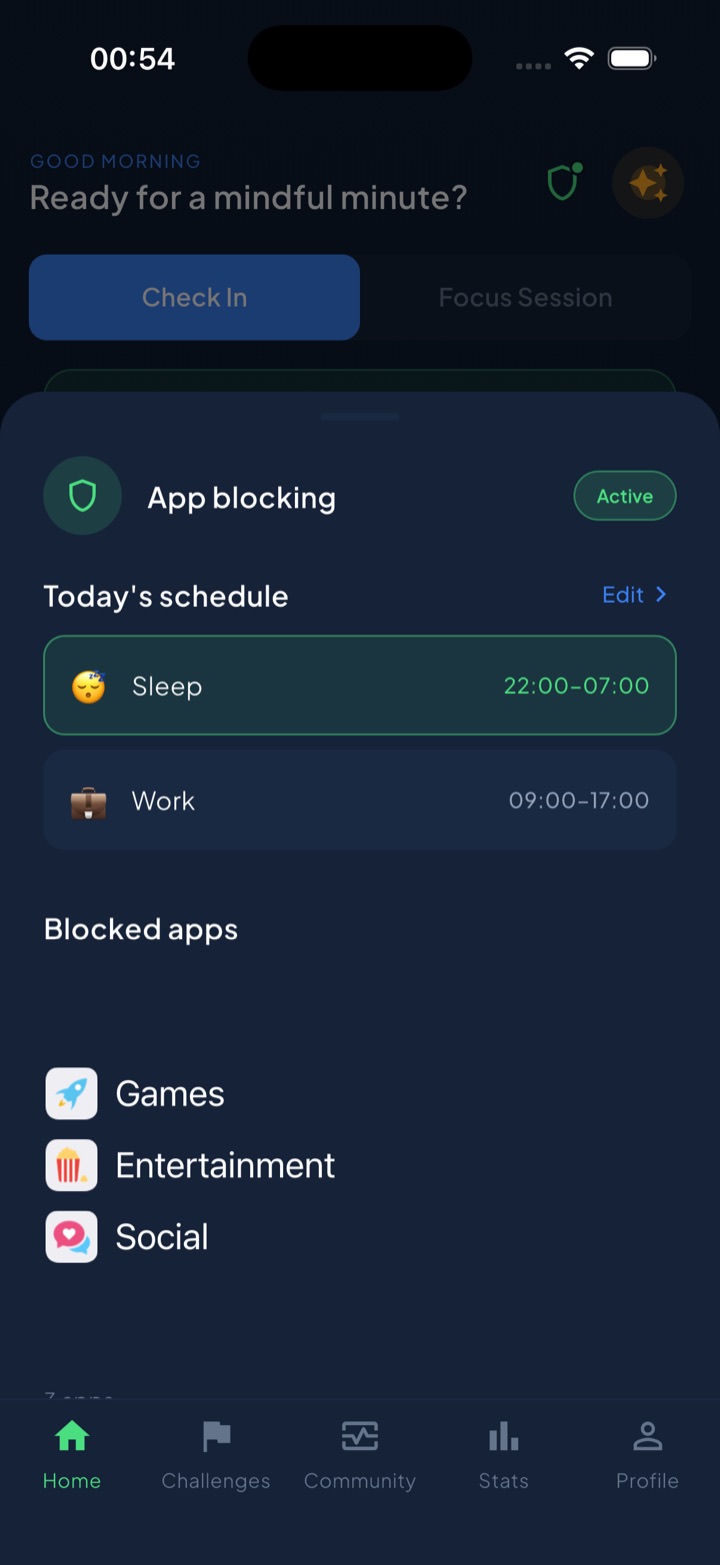
Where a dedicated tool earns its place is consistency and scheduling, which is precisely where raw Screen Time gets tedious. Unscrol uses the same official Apple frameworks (Family Controls and Managed Settings) to put up real system shields, but it aims them at whole apps and categories — including browser apps and Social, Games and Entertainment as groups — on routines you set once, like Work 09:00–17:00 or Sleep 22:00–07:00. To be clear, Unscrol blocks apps and categories, not individual website URLs; for a permanent single-site ban, Apple’s Never Allow list is still the tool. What Unscrol adds is that during those focus windows your browser and feeds are simply gone, and there is a deliberate “take a break” bypass for the moment you genuinely need to look something up — a middle ground between a soft reminder and a prison lock. A daily streak, mood and urge check-ins, and 45+ challenges keep the habit going after the novelty wears off, which is the part willpower alone never handles. If your real problem is losing evenings to feeds, pair this with our guide on how to stop doomscrolling and let the schedule do the remembering for you.
Frequently asked questions
How do I block a website on my iPhone?
Go to Settings, Screen Time, Content & Privacy Restrictions, Content Restrictions, Web Content. Turn on Limit Adult Websites and tap Add Website under Never Allow to block specific URLs, or choose Allowed Websites Only for a strict whitelist. Because iOS enforces this at the system level, it works in Safari and other browsers and disables Private Browsing. Set a Screen Time passcode that is different from your unlock code so the block cannot be removed on impulse.
Why can I still open a blocked website in Chrome?
The Never Allow list under Web Content usually applies system-wide, but the other method, adding a website under App Limits, only counts your time in Safari. So if you time-limit a site through App Limits, switching to Chrome or Firefox slips right past it. To close that gap you either add the site to the Never Allow list (which is broader) or block the whole browser app on a schedule. The cleanest fix during focus hours is blocking the browser app itself rather than chasing every URL.
Can I block a website for certain hours only on iPhone?
Apple's Screen Time can only put a daily time cap on a website through App Limits, not a strict hourly schedule, and that cap only tracks Safari. There is no built-in way to say block Reddit from 9am to 5pm. To get true time-of-day blocking you block the browser app on a schedule with a dedicated tool. Unscrol does this by blocking chosen apps and categories, including browser apps, during routines like Work 09:00 to 17:00, so distraction sites are unreachable during those hours.