iPhone parental controls all live in one place: Screen Time, set up through Family Sharing. As the family organizer you create a child Apple Account, then set Downtime (hours the phone locks down to calls and a few allowed apps), App Limits (daily caps per app or category), Content & Privacy Restrictions (block mature content, purchases and installs), and Communication Safety (blurs explicit images and warns about unknown contacts). It’s free, built into every iPhone, and protected by a separate Screen Time passcode only you know. The catch: a motivated kid can slip past several of these — and the fix for most bypasses is a conversation, not a tighter setting.

How do you set up parental controls on an iPhone?
Everything starts with Family Sharing, which links your child’s device to yours so you can manage it remotely.
- On your iPhone, open Settings › [your name] › Family Sharing and add a family member. For a child under 13, Apple requires you to create their Apple Account here — you can’t just log them into yours.
- On the child’s device, sign in with that new account.
- Open Settings › Screen Time and turn it on. You can do this from your own phone once the child is in your family group.
- Set a Screen Time passcode that is different from the phone’s unlock code — and, importantly, not a birthday or PIN your kid already knows. This one passcode is what protects every setting below.
- Configure Downtime, App Limits, and Content & Privacy Restrictions (more on each in the next section).
That’s the whole spine. If you’d rather block specific apps than cap them by the hour, our walkthrough on how to block apps on iPhone covers the app-by-app approach.
What can Screen Time actually control?
Screen Time is more than an on/off switch. Here’s what each feature does and where it’s fragile.
| Feature | What it controls | Bypass risk |
|---|---|---|
| Downtime | Locks the phone to calls + chosen apps during set hours (e.g. 22:00–07:00) | Medium — beatable by changing the clock or tapping “Ignore Limit” |
| App Limits | Daily time cap per app or category (e.g. 1h Social) | High — reinstalling the app resets it |
| Communication Limits | Who your child can call/text during allowed hours and Downtime | Low |
| Communication Safety | Blurs nudity in Messages/AirDrop, warns on unknown senders | Low |
| Content & Privacy Restrictions | Blocks mature content, in-app purchases, app installs, web content | Low–medium |
| Ask to Buy | Sends every download/purchase to you for approval | Low |
The two workhorses are Downtime and App Limits, but they only bite if you also turn on “Block at Downtime” and require your passcode for more time. Skip that step and the whole system becomes a polite suggestion. This is exactly why generic time caps so often fail — a point we unpack in why screen time limits don’t work.
How do kids get around iPhone parental controls?
Parents deserve the honest version, because the workarounds are widely known among teens. Here’s each common bypass with the fix:
- Changing the date and time. Kids roll the clock forward to “wait out” a limit or skip past Downtime. Fix: In Content & Privacy Restrictions › Allow Changes, lock the date and time so it can’t be edited without your passcode.
- Deleting and reinstalling an app. Removing an app can wipe its accumulated Screen Time and reset the daily limit. Fix: In Content & Privacy Restrictions › iTunes & App Store Purchases, set Deleting Apps to “Don’t Allow” (or turn off installing apps entirely).
- Watching YouTube inside Messages or Safari. Even if the YouTube app is limited, links open in the in-app browser or Safari. Fix: Add an App Limit for Safari too, and set Web Content to “Limit Adult Websites” so the browser isn’t a free escape hatch.
- Factory-resetting the phone. A full reset erases Screen Time — but only works if they know the Apple Account password. Fix: Keep the recovery credentials private, and enable Screen Time passcode recovery with your email so you can always regain control.
- Borrowing a friend’s phone. No setting on Earth covers a second device. Fix: This one is pure conversation — there’s no technical patch.
Notice the pattern: every gap except the last has a real setting that closes it. The “Ignore Limit” button is the one worth checking today — if you never set a Screen Time passcode, hitting an App Limit just shows “Ignore Limit for today,” and your child taps through in a second.
Why don’t parental controls work on their own?
Here’s the uncomfortable truth after you’ve locked every setting: restriction without buy-in becomes a game the kid is highly motivated to win. Researchers who study this consistently land on the same place — the strongest predictor of a child’s phone habits isn’t the tightness of the controls, it’s the phone behavior they see modeled at home. The American Academy of Pediatrics no longer prescribes a hard hourly number; it recommends a Family Media Plan built around conversation, consistency, and screen-free zones (meals, bedrooms, the hour before sleep).
“I spent two years tightening Screen Time on my son’s iPhone and he stayed one step ahead of every setting. What actually changed things was putting my own phone in a drawer at dinner — and letting him watch me do it.” — Dana, mother of two, 44
Controls buy you structure; the conversation buys you cooperation. Pair them. If your teen is heading into exams, the shift from “my parents block me” to “I block myself so I can study” is the whole ballgame — our parents’ guide to phone-free studying and the practical steps in how to focus while studying are built around that handoff.
How Unscrol helps
Let’s be honest first: for controlling a young child’s phone, Apple’s Screen Time is the right tool, it’s free, and nothing here replaces it. Unscrol is a self-control app, not a parental-control app — it has no remote-family or monitoring features, and it doesn’t block individual websites. So where does it fit? In two honest places.
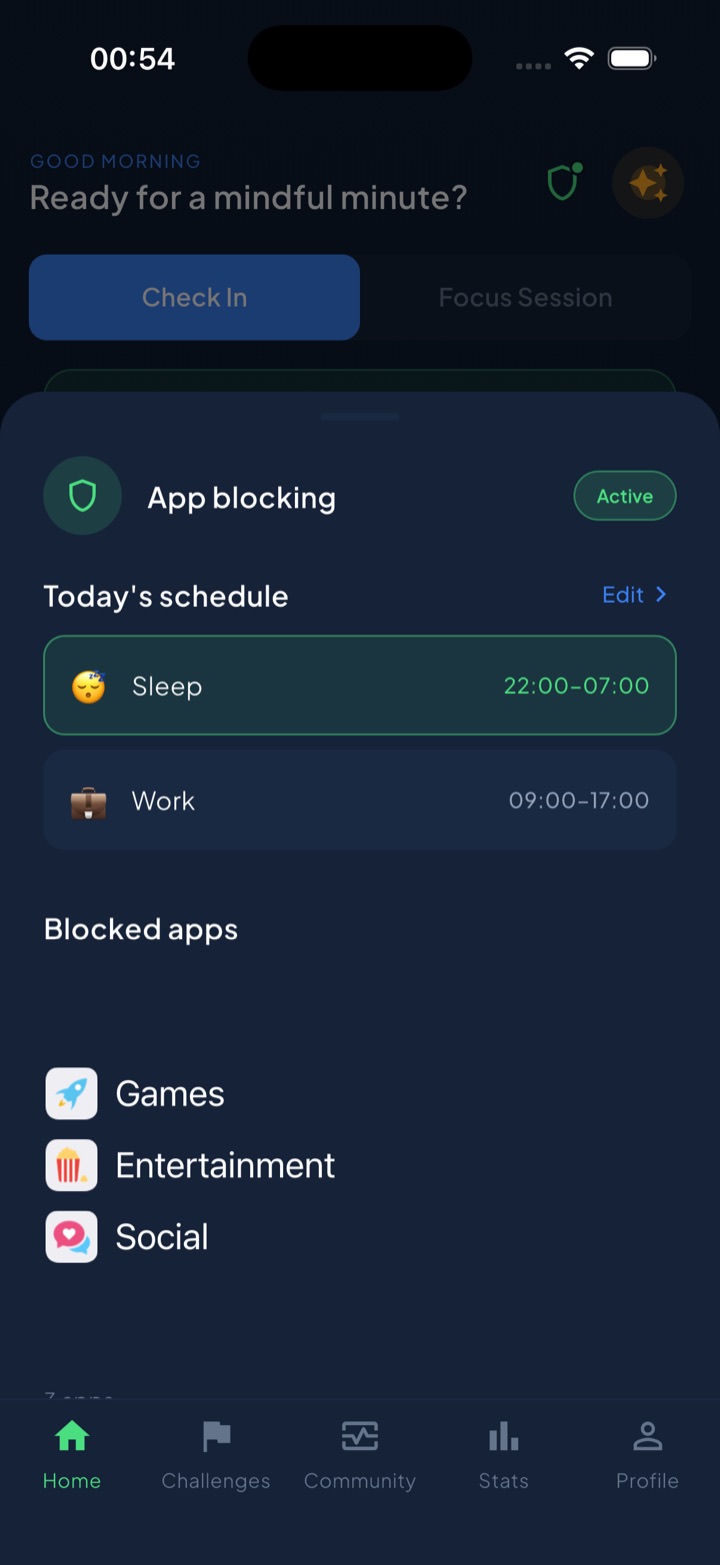
First, modeling. The single most effective parenting move — putting your own phone away — is also the hardest to do consistently. Unscrol runs scheduled blocking routines (a Work block, a Sleep block, a phone-free dinner window) using Apple’s official Screen Time frameworks, so the shields are real and system-enforced, not overlay reminders your thumb can swipe away. When your kids see the phone genuinely off-limits at dinner, that lands harder than any lecture. Second, teens who want to focus — the exam-season crunch (finals, SATs, entrance exams) — can install Unscrol themselves. Because they chose it, there’s no cat-and-mouse: they set the block, and a short “take a break” bypass exists for genuine needs so it never feels like a prison. A daily streak, mood check-ins, and 45+ challenges keep the habit going. Which apps they block and their usage stats stay on-device with iOS and never reach Unscrol’s servers.
Unscrol is free to download; Unscrol Pro adds Streak Saver for the days life gets in the way. Use Screen Time to set the guardrails for your kids — and use Unscrol to model the habit you want them to copy.
Frequently asked questions
How do I set up parental controls on my child's iPhone?
Add your child to Family Sharing on your own iPhone (Settings › your name › Family Sharing), creating an Apple Account for them if they're under 13. On their device, open Settings › Screen Time and turn it on, then set a Screen Time passcode that is different from the phone unlock code and that your child cannot guess. From there you configure Downtime, App Limits, and Content & Privacy Restrictions — and because the child is in your family group, you can review and change these remotely from your own phone.
Can my kid bypass Screen Time restrictions?
Yes, several common workarounds exist. Kids change the date and time to escape Downtime, delete and reinstall an app to reset its limit, watch videos inside Safari or Messages when the app itself is blocked, or factory-reset the phone if they know the Apple Account password. The single biggest gap is the 'Ignore Limit' button: if you never set a Screen Time passcode, a child can tap past any App Limit in one second. Setting that passcode and locking date-and-time changes closes most holes.
What's the difference between Family Sharing and Screen Time?
Family Sharing is the account structure — it links up to six family members, lets you create child Apple Accounts, share purchases, and turn on Ask to Buy so kids need your approval to download or spend. Screen Time is the usage-control layer that runs on each device: Downtime, App Limits, Communication Limits, and Content & Privacy Restrictions. You need Family Sharing first to manage a child's Screen Time remotely from your own iPhone. On its own, Screen Time also works for adults who want to limit their own usage.