To set up a Focus on iPhone, go to Settings > Focus, tap the plus button, choose a template or Custom, then configure People, Apps, and a Schedule. That takes about ninety seconds. The reason most people’s Focus modes do nothing is not the setup — it is the three settings underneath it that almost everyone leaves at the default: Focus filters, custom Home Screen pages, and automations. Configure those and a Focus stops being a fancy mute button and starts changing what your phone actually is for the next two hours.

How do you create a Focus mode?
- Open Settings > Focus.
- Tap the plus button in the top right.
- Choose a template — Work, Personal, Sleep, Reading, Fitness, Driving, Gaming, Mindfulness — or Custom.
- Name it, pick a colour and icon.
- Set People: who can still reach you. Choose Allow Notifications From for a short list, or Silence Notifications From to block a specific few.
- Set Apps: which apps may still notify you.
- Add a Schedule so it starts and ends without you.
To turn one on by hand, swipe into Control Centre, press the Focus button, and pick it from the list. Long-press for options such as “until this evening” or “until I leave this location”.
The three settings that actually make a difference
Everything above is table stakes. These are the parts that convert a Focus from a mute switch into a different phone.
Focus filters
Focus filters change how an individual app behaves while the Focus is active, rather than just silencing it. Inside a Focus, scroll to Focus Filters > Add Filter:
- Mail — show only one account, so work mail is invisible in the evening
- Messages — show only conversations from your allowed people
- Calendar — show only selected calendars, so the shared family calendar vanishes during work
- Safari — open a specific Tab Group, so Work Focus opens your work tabs and nothing else
- Dark Mode / Low Power Mode — flip system settings automatically
The Safari Tab Group filter is the most underrated setting in iOS. It means “Work Focus” does not just mute — it visibly changes what your browser contains.
A dedicated Home Screen page
This is the highest-impact one. Inside the Focus, tap Home Screen > Custom Pages, and select only the pages you want visible while it is on.
Make a page containing four apps you actually need for work. Assign it to Work Focus. Now when Work Focus is on, your phone has four apps on it. Instagram has not been deleted, but it is not there, and as the 20-second rule explains, “not there” is most of the battle. The same trick with a stripped-back page is the core of making your iPhone boring.
Automations
A Focus you have to remember to switch on will be switched on during the hours you least need it and forgotten during the hours you most do. Inside the Focus, tap Set a Schedule and add:
- Time — Work Focus 09:00 to 17:00 on weekdays
- Location — Work Focus when you arrive at the office; Personal when you get home
- App — Reading Focus whenever you open Kindle
- Smart Activation — let iOS choose based on your patterns
Location-based activation is the one people underuse. “Personal Focus turns on when I arrive home” is a single setting that quietly enforces a boundary you have probably been failing to hold by intention alone.
Which Focus modes are actually worth building?
Four is plenty. More than that and you spend more time managing modes than working.
| Focus | Allow | Trigger |
|---|---|---|
| Work | Team chat, calendar, two colleagues | Weekdays 09:00–17:00, or on arrival at the office |
| Sleep | Emergency contacts only, alarm app | 22:30–07:00 daily |
| Deep Work | Nothing at all, one home screen page | Manual, one to two hours |
| Personal | Family, friends; no work mail or Slack | On arrival home, or 18:00 |
Sleep Focus is the one to build first if you build only one. It pairs with a wind-down schedule and dims the lock screen, and it targets the window where phone use does the most damage — see screen time and sleep.
Why isn’t my Focus mode working?
Four things account for nearly every complaint:
Time Sensitive notifications bypass Focus. By design. Apps can mark alerts as time sensitive and they come through anyway — and plenty of apps abuse the label. Inside the Focus, under Apps, turn off Time Sensitive Notifications and see how much of the noise disappears.
It only applies to one device. Turn on Share Across Devices in Settings > Focus so switching it on the iPhone also silences the iPad and Mac.
Your schedule ends earlier than you think. Overlapping schedules cancel each other. Check each mode’s schedule individually rather than assuming.
You turned it off yourself. The most common cause by far, and the one Apple cannot fix.
The honest limit of Focus modes
Focus is genuinely excellent at one job and genuinely bad at another.
It is excellent at removing interruptions. Nobody pings you, nothing lights up, your attention is left alone. If your problem is inbound noise, Focus solves it completely and free.
It is bad at stopping you from reaching for the app yourself. Every Focus can be ended in two taps from Control Centre, and the apps are all still installed, still logged in, still one swipe away on another home screen page. Focus filters what comes in. It does nothing about what goes out.
That distinction matters because most phone use is not a response to a notification. It is a self-initiated reach during a boring moment. Focus mode has no opinion about that at all.
“I built a beautiful Work Focus with filters and a custom home page. Then I spent three weeks swiping to page two and opening Twitter anyway. The notifications were gone. The habit was completely untouched.” — Sofia, freelance illustrator, 27
How does Unscrol help?
To be direct: everything above is free and built into your iPhone. If your problem is interruptions, Focus modes are the answer, and you should stop reading here and go build a Sleep Focus.
Unscrol is for the other half — the reach you initiate yourself. It is an iPhone and Apple Watch app built on Apple’s Screen Time frameworks, so its blocks are system-enforced by iOS rather than a cosmetic overlay, and it complements a Focus mode instead of replacing it.
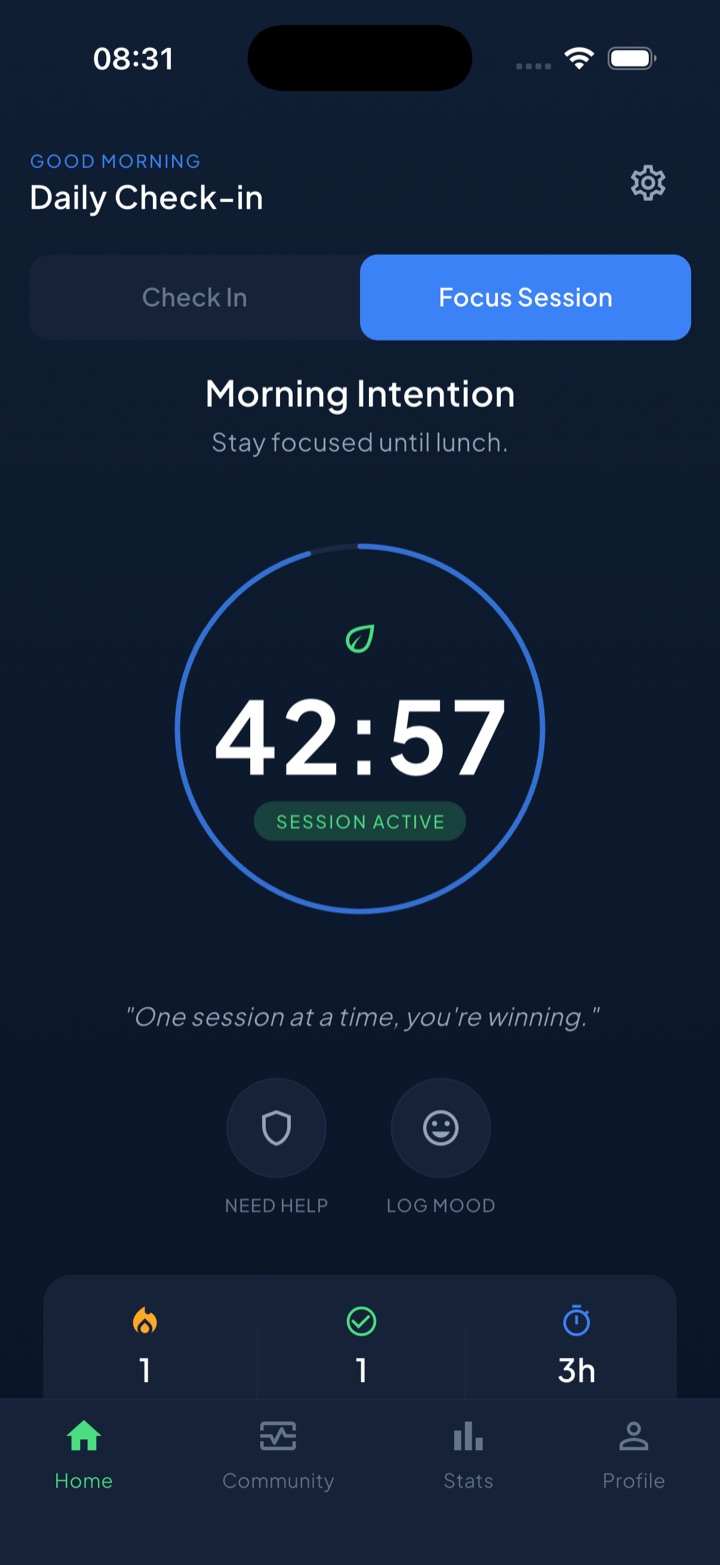
Where Focus silences inbound alerts, Unscrol’s scheduled blocks make chosen app categories genuinely unavailable during windows you set in advance — so the two-tap escape from Control Centre is not the same two taps. A focus session runs a visible countdown with a Live Activity on the lock screen and blocking active for its duration, and a short deliberate take-a-break bypass covers the real exceptions. A unified daily streak grows on any day you complete a quick check-in or one of 45+ challenges, so the work of protecting attention accumulates into something visible. Block lists and usage data are processed on-device by iOS and never reach Unscrol’s servers. Free to download; the optional Pro tier adds a Streak Saver that rescues a single missed day, twice a week.
Frequently asked questions
How do I set up a Focus mode on iPhone?
Open Settings and tap Focus, then tap the plus button in the top right and pick a template such as Work, Personal, or Sleep, or choose Custom. Give it a name, colour, and icon. Then set People and Apps to decide who and what may still notify you, add a Schedule so it turns on automatically, and optionally set a custom Home Screen page and Lock Screen. You can also switch any Focus on manually from Control Centre by pressing the Focus button and choosing it from the list.
What is the difference between Do Not Disturb and Focus?
Do Not Disturb is now one Focus mode among several rather than a separate feature. Focus is the wider system: you can create multiple modes, each with its own allowed contacts and apps, its own home screen pages, its own lock screen, its own automation schedule, and its own Focus filters that change how individual apps behave. Do Not Disturb is simply the preset that silences almost everything. If you only ever use Do Not Disturb, you are using perhaps a fifth of what Focus can do.
Why does my Focus mode keep turning off or not working?
The three usual causes are Share Across Devices being off so the mode only applies to one device, a Time Sensitive notification override letting apps through anyway, and an automation that ends the Focus earlier than you expect. Check Settings, Focus, then the mode, and look at Focus Status and the Schedule section. Also check whether individual apps have permission to send Time Sensitive alerts, since those bypass Focus by design. Finally, a Focus you can end with one tap from Control Centre will not survive a moment of genuine temptation — that is a limitation of the feature, not a bug.