The honest answer is that you cannot block only YouTube Shorts on an iPhone. Apple’s Screen Time — and every app-blocker built on it — works at the level of a whole app, never a single feature inside it, so there’s no switch that strips out the Shorts shelf while leaving the rest of YouTube working. What you can do sits on a ladder from weakest to strongest: tell YouTube “Not interested” to cool the recommendations, use YouTube’s own hide-the-shelf setting where your account has it, watch on desktop where the pull is weaker, or — the only version that reliably holds — schedule-block the entire YouTube app during your vulnerable hours. Here’s what each rung does, and where it breaks.
Why can’t you block just YouTube Shorts on iPhone?
Because iOS doesn’t do per-feature blocking, and never has. Apple’s Family Controls and Screen Time frameworks — the official plumbing every legitimate blocker uses — draw the line around an app bundle. YouTube is one bundle: Shorts, long videos, Search, and your subscriptions all live inside it, so the system can shield the whole thing or none of it. There’s no supported way for iOS to reach inside the app and switch off one shelf.
This is the platform limit every competitor quietly dances around. When an app promises to “block Shorts,” it’s almost always blocking the whole YouTube app, or redirecting the youtube.com/shorts path in a browser (which the app ignores entirely). Neither is a true feature-level block — it’s the same wall you hit trying to kill only Reels, as we covered in how to stop watching Reels and Shorts. Knowing this saves you from chasing a setting that doesn’t exist.
Can you turn off or hide YouTube Shorts inside the app?
You can soften Shorts from inside YouTube, but you can’t switch it off. These are the real in-app levers, weakest to strongest:
- “Not interested” on a Short. Tap the three-dot menu on any Short and choose Not interested. It tells the algorithm to serve fewer clips like that one — cooling the feed over days, without removing Shorts.
- Dismiss the Shorts shelf. On the home feed you can often tap the shelf’s menu and hide it. YouTube has rolled a “hide Shorts for 30 days” option out to some accounts — where you have it, the shelf returns after the timer and doesn’t stop a Short that a link opens.
- Pause your watch history. In Settings, pausing watch history thins out personalized recommendations, including Shorts. The trade-off is a blander feed overall.
The catch is that these are all soft settings that quietly reset. The shelf comes back, the algorithm relearns you the moment you watch a couple of clips, and none of it stops a Shorts link a friend sends. If short-form video is eating your evenings — the TikTok-brain, short-video pattern of endless swiping — these dials aren’t strong enough on their own.
Do the browser and URL tricks for blocking Shorts work?
Sort of, and only halfway. The most reliable browser trick is a manual URL edit: a Short’s address looks like youtube.com/shorts/VIDEO_ID. Replace shorts/ with watch?v= and it opens in the standard player — no vertical, auto-advancing feed, just the one video. That single change removes most of the compulsive pull, because the endless swipe is gone.
There are also Safari content blockers and Screen Time’s website restrictions (you can add youtube.com/shorts to Never Allow under Content Restrictions). The honest limits:
- It only works in a browser. The YouTube app deep-links straight past Safari, so website settings are invisible to it.
- It’s fragile and manual. You edit every link by hand, and YouTube can change the path’s behavior anytime.
- Path-level blocking is unreliable. Screen Time is happiest blocking a whole domain, not one path inside it.
Treat browser tricks as a downgrade, not a lock. They make Shorts less addictive when you do watch; they don’t stop you from opening the app at midnight.
What actually works: schedule-block the whole YouTube app
The only method that survives a tired, bored 11 p.m. version of you is blocking the entire YouTube app during the hours you’re weakest, and keeping it available on desktop, where you arrive to watch something specific and the Shorts feed has far less grip. You lose Shorts for those windows because you lose all of YouTube — and that’s the point: you’re removing the decision instead of trying to win it thirty times a night.
The practical setup:
- Name your vulnerable windows. For most people that’s the last hour before bed and the first hour after waking, plus the mid-afternoon slump.
- Block the YouTube app (or the whole Entertainment category) on a schedule across those windows, using a real system-level shield, not a dismissible reminder.
- Keep YouTube on your laptop for the things you value — a tutorial, a long video — where the vertical swipe isn’t the default.
“I didn’t have a YouTube problem — I had a Shorts-at-1-a.m. problem. There’s no button for that, which drove me crazy for weeks. What finally worked was dumb and simple: YouTube is just gone from my phone between 10pm and 7am. The first three nights I reached for it out of habit and hit the shield. Now I don’t reach at all.” — Marcus, software developer, 29
Generic reminders fail because they ask you to resist at the exact moment resistance is lowest — the whole reason screen-time limits don’t work for compulsive use. A scheduled block moves the decision to a calm moment hours earlier.
Which method actually holds?
Here’s the ladder side by side, so you can pick the strongest rung you’ll actually stick to:
| Method | What it blocks | How easily it’s bypassed |
|---|---|---|
| ”Not interested” | Nothing — just cools recommendations | Instantly; the feed relearns you |
| Hide Shorts shelf (where available) | The home-feed shelf, temporarily | Returns after ~30 days; links still open Shorts |
| Pause watch history | Personalized Shorts, partly | One tap to resume |
| Browser URL edit / content blocker | The vertical feed, in Safari only | App ignores it; manual and fragile |
| Schedule-block the YouTube app | All of YouTube, on your schedule | Real shield — you’d have to disable it on purpose |
The pattern is clear: the softer the tool, the faster it folds. Plenty of people also solve this with no app at all — deleting YouTube for two weeks and watching only on a laptop is completely valid. The tools below just make the block hold on the nights your willpower doesn’t.
How Unscrol helps you block YouTube Shorts
Since iOS won’t block Shorts on its own, the realistic goal is to make the YouTube-app block automatic and consistent — and that’s what Unscrol is built for on iPhone and Apple Watch. You create scheduled blocking routines — say, block YouTube (or the whole Entertainment category) from 10pm to 7am and again during your afternoon dip — and Unscrol applies a real system-level shield using Apple’s official Screen Time frameworks, not an overlay you can swipe away.
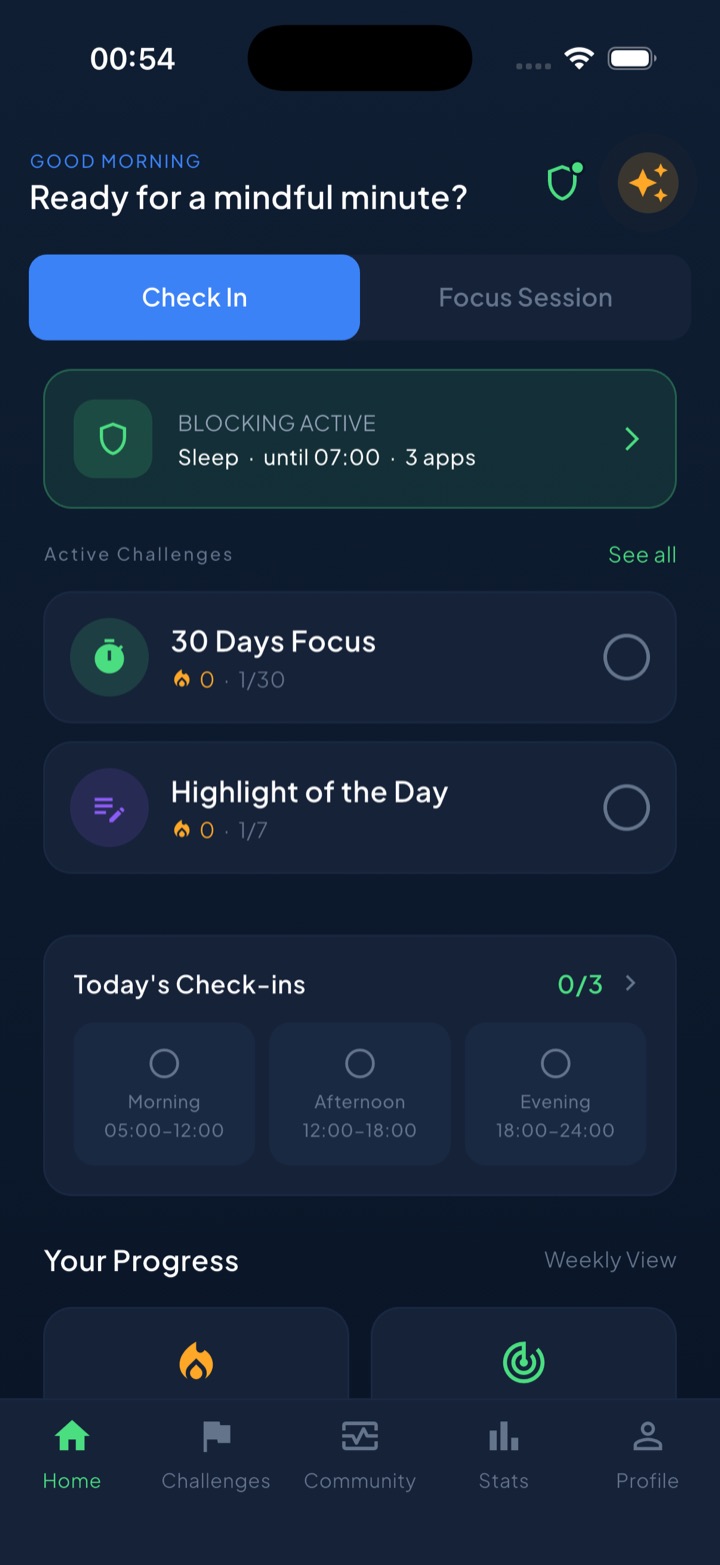
To be straight with you: you can build the same routine for free with Apple’s built-in Screen Time — set a Downtime schedule, block YouTube, and hold the line yourself. What Unscrol adds is consistency. A short “take a break” bypass is there for genuine exceptions — a deliberate middle ground, not a prison — but you feel yourself using it, which is exactly the friction Screen Time’s one-tap “Ignore Limit” button removes. A daily streak keeps you honest, and the mood check-in helps you notice why you reach for Shorts (bored, anxious, avoiding), so the habit doesn’t just relocate to another app. Your usage stays private too — which apps you block and your screen-time numbers are processed on-device by iOS and never reach our servers.
You can’t switch off the Shorts shelf. What you can do is decide, once and in advance, that YouTube stays shut during your two weakest hours — and that single scheduled block does more than any amount of tapping “Not interested.”
Frequently asked questions
Can you block just YouTube Shorts and not the rest of YouTube?
No — not on an iPhone. Shorts is a feature inside the YouTube app, and Apple's Screen Time (plus every blocker built on it) can only block whole apps, never a single feature within one. There is no iOS switch that removes the Shorts shelf while keeping regular videos, search, and subscriptions working. You can nudge the algorithm with 'Not interested,' hide the shelf where YouTube offers that setting, or block the entire YouTube app during certain hours — but a Shorts-only block on iOS simply isn't technically possible today.
How do I hide YouTube Shorts on my iPhone?
Inside the app, tap the three-dot menu on any Short and choose 'Not interested,' which cools future recommendations, and dismiss the Shorts shelf on your home feed if your account has the 'hide for 30 days' option. Pausing your watch history also thins out tailored Shorts. None of this is permanent — the shelf returns and the feed relearns you. For a hard stop, block the whole YouTube app during your weak hours instead of relying on settings that quietly reset themselves.
Does watching YouTube in a browser stop Shorts?
Partly. In a browser you can edit a Short's URL — swap 'shorts/' for 'watch?v=' — to open it in the standard player without the auto-advancing vertical feed, and the desktop layout puts far less pressure on you than the phone app. But it's fragile: you edit every link by hand, YouTube can change the behavior, and tapping a link often reopens the app anyway. It's a useful downgrade, not a reliable block. Scheduling the app closed during vulnerable hours is what actually holds.