Every app blocker on iPhone that can genuinely stop an app from opening is built on Apple’s Screen Time frameworks — Family Controls, Managed Settings and Device Activity — because that is the only blocking interface Apple gives developers. So “without Screen Time” cannot honestly mean “without the underlying technology”. What it can mean, and almost always does, is without the Screen Time section in Settings, without a Screen Time passcode you have to manage yourself, and without Apple’s own limits, which are the part you have probably already tried.
That distinction is the whole point of this page. The honest version of the question has real answers. The dishonest version sells you a method that quietly does nothing.

Is there any way to block apps on iPhone without Screen Time?
Not in the strict sense, and it is better to know that now than after three downloads.
Since 2021 Apple has shipped exactly three frameworks for restricting apps on iOS, all three under the Screen Time umbrella. Family Controls asks for permission and hands the app opaque tokens standing in for the apps you selected. Managed Settings applies the shield you see over a blocked app. Device Activity schedules the windows in which that shield applies. Using them requires an entitlement a developer has to request from Apple and often waits weeks to receive. There is no second door and no App Store app that has found a way around it.
There is one real exception, and it is smaller than it sounds. Apps that filter at the network layer — DNS filters, Safari content blockers, VPN-based filters — use Apple’s Network Extension frameworks instead, so they genuinely never touch Screen Time. But they decide what traffic leaves the phone, not what launches on it. Open Instagram behind a DNS filter and Instagram opens. It shows a spinner, then the posts you already loaded, then an error. You are still standing in the app.
So the useful question is narrower: how do you get a block without the Screen Time UI, without a Screen Time passcode, and without relying on Apple’s own limits? That version has answers.
What do people actually mean by “without Screen Time”?
Nearly everyone searching this phrase is in one of five situations, and the right method differs for each.
- You forgot the Screen Time passcode. Try recovery first: Settings > Screen Time > Change Screen Time Passcode > Forgot Passcode, then the Apple Account email and password you attached when you created it. That route exists only if you attached an account at the time. If you did not, the supported fix is erasing the device and setting it up as new, because restoring a backup brings the old Screen Time configuration back with it.
- It is a work-managed device. A mobile device management profile can lock Screen Time out entirely, and some configurations also stop third-party apps requesting Family Controls. Greyed-out Screen Time on a company phone is policy, not a bug, and it is your IT department’s call.
- Someone else set it up. A partner, a parent, a carer. If the arrangement no longer fits, the conversation is with them. Nothing here is a way around restrictions on a device somebody else manages.
- The limits stopped working. You have an App Limit and you tap through it daily. This is the most common case by far, and it is a design problem rather than a technical one: the limit screen ends in a one-tap “Ignore Limit”, and one tap is not friction.
- You do not trust the numbers. The weekly report says three hours and it felt like six. If the reporting has lost your confidence, the enforcement usually loses it too.
Only the last two are about blocking. The first three are about access, and they decide which method below is even available to you.
Can a blocker use its own lock instead of the Screen Time passcode?
Yes, and for most people this is the answer they were actually looking for.
A blocker built on Family Controls asks for permission once. You approve a system prompt with Face ID or your device passcode, pick the apps through Apple’s picker, and from then on the rules live inside that app. You never open Settings > Screen Time again and never create a Screen Time passcode. The blocker’s own unlock becomes the thing standing between you and the feed, which makes the design of that unlock the only thing that matters — the argument laid out in why the escape hatch decides whether a blocker survives.
This is where the honest advantage over Apple’s built-in limits sits. Apple ends at “Ignore Limit”. A third-party blocker can make the exit cost something: a mandatory wait, a breathing exercise you have to sit through, a cooldown that locks the app for a fixed fifteen minutes once you have burned a session. None of that is possible in Settings; all of it is possible on the same frameworks. Unscrol is built this way: a daily budget for the apps you choose, a shorter per-session cap on top, and a deliberate wait rather than a button when you want out. It never asks for a Screen Time passcode, and because iOS hands it opaque tokens rather than app identities, it cannot see which apps you picked.
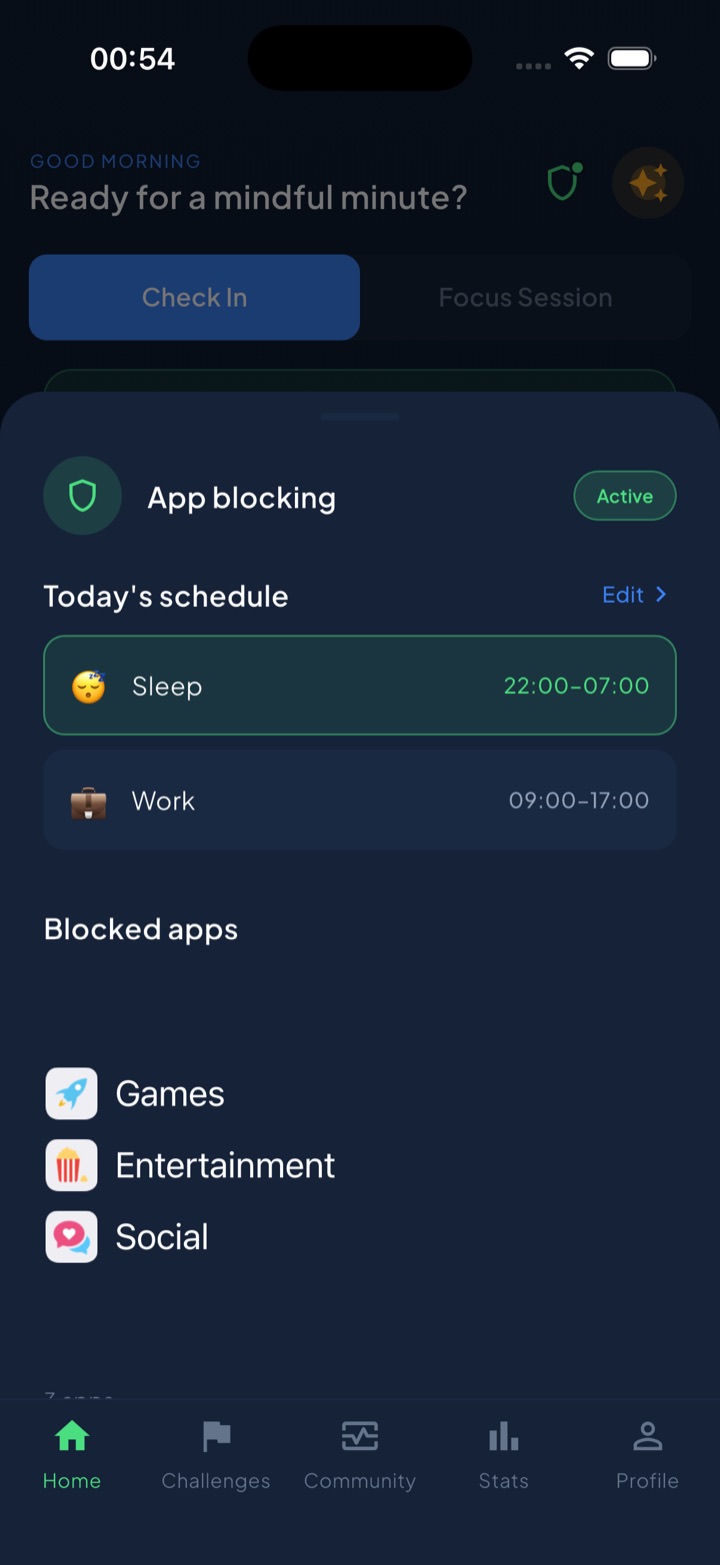
Two caveats. First, an existing passcode can still catch you: Tech Lockdown documented a change in iOS 26.4 where, on a device that already has a Screen Time passcode with Screen Time settings locked, changing which apps hold Screen Time access asks for that passcode rather than Face ID. A blocker frees you from creating a Screen Time passcode; it does not free you from one that already exists and is locked down. Second, if MDM policy blocks Family Controls, no blocker in the App Store will work, whatever its listing claims — test that before you subscribe. The rundown of what iPhone blockers can and cannot do covers the rest of the ceiling they all share.
Can Focus modes stop an app from opening?
No, and this is the most common misunderstanding on the topic.
A Focus silences notifications from apps and people you have not allowed, hides chosen Home Screen pages while it runs, can swap the Lock Screen, and can run filters that change how one app behaves inside it — a work calendar only, a filtered inbox. What it cannot do is refuse to launch something. Tap the TikTok icon during a Work Focus and TikTok opens, exactly as always.
That still buys real quiet, and pairing a Focus with a Home Screen page holding none of your problem apps removes a lot of accidental opens. It just is not a block, and treating it as one is how people end up convinced that “nothing works”. The full Focus setup, filters and schedules included, is worth ninety seconds. Remember too that a Focus ends in two taps from Control Center, with no wait and no way to add one.
Does deleting the app or hiding it count as blocking?
No, but it counts as friction, and sometimes friction is enough. Be precise about which one you are getting.
Deleting the app and using the website
This works better than people expect for text-first services and worse for Instagram and TikTok, whose sites are deliberately weaker than their apps and nag constantly to switch back. Safari undermines you in three ways: you can add any site straight back to the Home Screen where it looks and behaves like an app, autofill signs you in instantly, and reinstalling the real app takes about twenty seconds because the App Store already knows you had it and Face ID authorises the download. Note also the difference between Delete App, which removes the data, and Offload App, which keeps every setting so the app returns exactly as you left it. If the website itself is the problem, blocking sites on iPhone is a separate job.
Hiding it from the Home Screen and from Search
Long-press an icon and choose Remove from Home Screen and the app stays in the App Library, one swipe and one search away. Long-press and choose Require Face ID, then Hide and Require Face ID, and it goes into a locked Hidden folder in the App Library: out of Search, out of Siri suggestions, with its notifications hidden. You can go further in Settings > Apps > [the app] > Siri & Search and turn off Show App in Search.
All of this cuts down the opens you did not decide to make — the reach into the pocket that ends in a feed you never chose. It does nothing to the deliberate ones. That is the trade, and it is the same idea behind making the whole phone boring: change the pull, not the permission. Monochrome screens, dead badges and an empty dock belong in the same column. Label them as friction, keep the ones that survive a fortnight, and do not be surprised when a determined evening walks through every one of them.
Can you block apps at the router, over DNS, or by cutting cellular data?
Yes to all three, each with a specific hole.
Router blocking. Block the domains in your router’s admin page and every device on that network is covered, which is why it appeals to households. Then the phone leaves the house, or switches to cellular without telling you, and the block is simply gone. Modern apps also fan out across dozens of domains and content delivery networks, so a partial block usually produces a half-loading, broken app rather than a clean stop.
DNS filtering. A DNS profile from a reputable provider follows the phone onto cellular, closing the gap the router leaves open. It is still a network filter, so the app opens and fails to load. It lives at Settings > General > VPN & Device Management, where removing it takes about thirty seconds and no passcode, and encrypted DNS inside individual apps can route around it.
Per-app cellular data. This one is underrated and takes fifteen seconds:
- Open Settings > Cellular (Mobile Data in some regions).
- Scroll past the usage summary to the alphabetical list of apps.
- Turn the toggle off for the app you want to starve.
An app with no cellular permission cannot open a connection outside Wi-Fi at all, so if your problem is the commute, the office or a bedroom where the Wi-Fi is bad, this quietly solves most of it. It is also reversible in fifteen seconds by the same hand that set it, with no passcode anywhere in the flow.
Can a Shortcuts automation close the app for you?
Sort of, and badly enough that it is worth explaining why rather than just saying no.
The build people share looks like this: in Shortcuts, go to Automation > New Automation > App, choose the app, select Is Opened, set it to Run Immediately, and have the shortcut open something else, so launching the app bounces you somewhere harmless. There is no supported action that quits an app, so bouncing is the whole trick.
It falls apart in four places. You get a visible half-second inside the app before the automation fires, long enough for the feed to load. Triggers are not perfectly reliable and quietly fail to fire. The automation is three taps from deleted, by the same hand currently craving the app. And because the bounce is instant and repeatable, you learn to fight it, which turns it into a speed bump that trains you to be quick.
When is Guided Access the right tool?
Guided Access is the mirror image of a blocker: rather than locking one app away, it locks you inside one app until you enter a passcode. Turn it on at Settings > Accessibility > Guided Access, set a Guided Access passcode there, then triple-click the side button inside the app you want to stay in.
It is the right tool in a few narrow cases: handing your unlocked phone to a child for one game, reading in a single app on a long journey, a two-hour writing block, a phone handed to a stranger to show one thing. It is the wrong tool for everyday blocking, because it is per-session and manual. You start it deliberately every time, it covers exactly one app, and nothing about it is scheduled. Nobody triple-clicks their way to a better week.
Which of these actually holds?
| Method | What it actually blocks | How hard to undo | Survives leaving Wi-Fi | Needs a passcode |
|---|---|---|---|---|
| Screen Time App Limits | Launching the chosen apps | One tap on “Ignore Limit” | Yes | Optional Screen Time passcode |
| Third-party blocker on Family Controls | Launching the chosen apps | As hard as its unlock: a wait, a breathing exercise, a cooldown | Yes | No; the app’s own lock |
| Focus mode | Notifications and Home Screen pages, not launching | Two taps in Control Center | Yes | No |
| Delete the app, use the website | The app; the site still loads | About 20 seconds to reinstall | Yes | No |
| Hide app, Require Face ID | Discovery, not access | A few taps, plus Face ID | Yes | Face ID |
| Turn off cellular data for the app | The app’s network access off Wi-Fi | About 15 seconds in Settings | It only works off Wi-Fi | No |
| Router domain block | Domains, on that network only | Walk out of the building | No | Router password |
| DNS filtering profile | Domains, on Wi-Fi and cellular | Remove the profile, about 30 seconds | Yes | No |
| Shortcuts automation | Nothing reliably | Delete the automation, three taps | Yes | No |
| Guided Access | Leaving the one app you are in | Guided Access passcode | Yes | Yes, its own |
Read the third and fourth columns together. The methods that hold are the ones where undoing them costs time you do not have in the moment, and where walking out of your own front door changes nothing.
“My old company put a management profile on the work phone and Screen Time was greyed out completely, even for me. What actually worked was dull. No cellular data for Instagram, and the app hidden in the App Library behind Face ID. There is no Wi-Fi on site, so it is dead from seven until five. At home it comes back, and honestly that is fine — the problem was never the evenings.” — Marcus, 41, site supervisor
What is not worth doing?
Four things come up constantly. None belong on a phone you rely on.
- Configuration profiles from unknown sources. A profile can change DNS, add certificates and restrict settings across the whole device. Install one only from a provider you would trust with your bank, and check Settings > General > VPN & Device Management afterwards.
- Jailbreaking. It breaks the security model that keeps your data separate, costs you updates and, on current iOS, is not a live option anyway.
- “Blockers” that are only overlays. Apps without the Family Controls entitlement cannot shield anything, so they open a reminder card on a timer and hope. If a listing never mentions Screen Time permission during setup, that is what you are buying.
- Screen Time passcode “removal” tools. Most either erase the device, which you can do yourself for free, or want more access than this is worth.
And once more plainly: none of this applies to a device someone else manages. Getting around a restriction another person set is a conversation, not a settings change.
What none of this actually fixes
No method here survives a determined user, and none should. You own the phone. Every lock you can put on it you can take off, and any design pretending otherwise would be deleted the first time it fired while you were reaching for a boarding pass or a two-factor code.
That is not the failure it looks like. The point was never a prison. It is to put enough distance between the impulse and the app that the impulse expires on the way — the sixty seconds, the fifteen-minute cooldown, the Settings screen you would have to walk to. Most reaches for the phone are not decisions. They are reflexes, and reflexes lose to almost any delay.
What none of this touches is the reason you reached. If you open the app because you are bored, lonely, avoiding a piece of work or awake at two in the morning, a block moves the behaviour rather than the cause, and something else will fill the gap for a while. Pick the method whose undo cost is highest, expect to adjust it twice in the first fortnight, and judge it on a month rather than a bad Tuesday.
Frequently asked questions
Is there an app blocker for iPhone that does not use Screen Time?
No, not if you mean an app that can stop another app from opening. Apple exposes exactly one blocking mechanism to developers, the Screen Time frameworks, called Family Controls, Managed Settings and Device Activity. Any blocker in the App Store that puts a shield in front of an app is using them, and had to apply to Apple for the entitlement first. The apps that genuinely avoid Screen Time are network filters, such as DNS or VPN-based content blockers, and they work at a different layer: they can stop the app loading anything, but the app itself still launches. What you can avoid is the Screen Time section in Settings and the Screen Time passcode.
Can I block apps on my iPhone if I forgot my Screen Time passcode?
Yes, and you can usually recover the passcode first. Go to Settings, then Screen Time, then Change Screen Time Passcode, then Forgot Passcode, and enter the Apple Account email and password you attached when the passcode was created. If no Apple Account was attached, the only supported route is erasing the device and setting it up as new rather than restoring a backup that carries the old Screen Time settings. If neither appeals, install a third-party blocker instead. It authorises with Face ID or your device passcode and keeps its own lock, so the forgotten Screen Time passcode never comes up.
Does Focus mode block apps from opening on iPhone?
No. A Focus controls attention, not access. It silences notifications from people and apps you have not allowed, can hide chosen Home Screen pages while it is running, can change the Lock Screen, and can run Focus filters that alter how a single app behaves. It cannot refuse to launch anything. Tap an app icon during a Work Focus and the app opens exactly as it always does. A Focus is also switched off from Control Center in two taps, with no delay and no passcode, so it holds only for as long as you want it to. It reduces interruptions well and prevents almost nothing.
Can blocking a website in my router stop me using an app on my iPhone?
Only while the phone is on that Wi-Fi network. Router-level blocking filters domains for every device on the network, which makes it useful for a household, but the phone carries a second connection in its pocket. Switch to cellular, or walk out the front door, and the block is gone with no warning and no prompt. Modern apps also spread across dozens of domains and content delivery networks, so partial blocks tend to produce a broken, half-loading app rather than a clean stop. A DNS filtering profile follows the phone onto cellular, which fixes the coverage hole, but it is still a network filter and the app still opens.