If your app still opens after the limit runs out, the limit is almost certainly working and the block is not: the “Block at End of Limit” switch is off, and that switch only exists on a device that already has a Screen Time passcode. That single setting explains most reports of App Limits “not working”. The rest come from a handful of specific, checkable causes: activity tracking switched off, Family Sharing not delivering the limit, a category that does not contain the app you meant, and a clock the device is happy to have you move. This is the technical half of the problem. Work through it in order and you can tell within about five minutes whether your iPhone is broken or whether you are.

Why does the app still open after the limit is up?
Because by default an App Limit ends in a prompt, not a wall. When the timer reaches zero iOS dims the screen and offers a way through. Depending on the device and how the limit was created, the buttons are some combination of “One More Minute”, “Remind Me in 15 Minutes”, “Ignore Limit” and “Ignore Limit for Today”. Tapping any of them puts you straight back in the app, and “Ignore Limit for Today” removes the limit until midnight.
The fix is one switch, per limit:
- Open Settings > Screen Time > App Limits.
- Tap the individual limit, not the App Limits row.
- Scroll to the bottom and turn on “Block at End of Limit”.
With it on, the end-of-limit screen no longer offers a way through. Getting back into the app requires the Screen Time passcode. Note that this is per limit, not global: if you have five limits and turned the switch on once, the other four are still soft. Several people have reported the switch appearing to be off on limits they never edited, particularly after an iOS update, so it is worth opening every limit rather than assuming.
Why is “Block at End of Limit” missing from your settings?
Because the device has no Screen Time passcode. Apple hides the switch until one exists, and the reasoning is sound: a hard block with no passcode would lock you out of the app until midnight with no way back in at all, including in an emergency.
Set one at Settings > Screen Time > Lock Screen Time Settings. Two things matter here:
- Do not reuse your unlock passcode. Screen Time asks for it every time you change a restriction, often in public, and reusing the unlock code makes the restriction undoable by anyone who has watched you unlock the phone.
- Enter the recovery email when iOS asks. It is the only supported recovery route. Without it, a forgotten Screen Time passcode means erasing the phone and setting it up as new. There is a walkthrough for that in our guide to a forgotten Screen Time passcode.
Once the passcode is set, go back into each existing limit. The switch is now there, and it is off by default, so nothing you set before the passcode is currently blocking anything.
Is App & Website Activity switched off?
If it is, nothing on the device is being measured, and an App Limit with no measurement behind it never fires at all. This is the quiet version of the problem: the limit is listed in Settings, it looks configured, and it simply never triggers, because the counter feeding it is not running.
Check at Settings > Screen Time. If the bottom of that screen reads “Turn On App & Website Activity”, tracking is off. Tap it. If it reads “Turn Off App & Website Activity”, tracking is running and this is not your problem.
Two things worth knowing. First, turning this off deletes your reports and your existing limits and Downtime schedules along with them, so if someone toggled it off and back on, your limits are gone rather than broken and you need to create them again. Second, it has a history of switching itself off after major iOS updates without anyone touching it. We cover what this setting records, and why it keeps resetting, in the App & Website Activity guide.
Why don’t the limits you set for someone else reach their phone?
Because Family Sharing limits are not stored on the parent’s phone. They are pushed through Apple’s servers to the child’s device, and that delivery can be late, partial, or silent. It is the single most common complaint about Screen Time that has nothing to do with the person being limited.
Diagnose it from the child’s device, not yours:
- On the child’s iPhone, open Settings > Screen Time > App Limits. If the limit is not listed there, it never arrived, and the parent-side screen showing it is meaningless.
- Confirm both devices are online and signed in to the same Family Sharing group.
- Restart both phones. A stalled Screen Time sync often clears on a reboot.
- In Settings > Family on the organiser’s device, remove any device or account the child no longer uses. A duplicate or retired device in the family can absorb the reports and the limits, which is why usage sometimes shows as zero for a phone that is clearly being used.
If it still will not sync, set the limit directly on the child’s phone with a passcode they do not have. That path is local, applies immediately and does not depend on Apple’s servers; the trade-off is losing the remote view of their usage. The wider setup is in our parental controls guide for iPhone.
Did you limit a category that doesn’t contain the app?
App Limits can target either an individual app or a category such as Social, Games or Entertainment, and Apple decides which category an app belongs to based on its App Store listing. That decision is frequently not the one you would make. YouTube is filed under Entertainment rather than Social. A game with a chat feature may sit in Games and be untouched by your Social limit. A messaging app you think of as social may be categorised as Productivity.
You cannot see or change an app’s category from Settings, so the practical test is to open the limit and read what is actually listed inside it. If you set a 30-minute Social limit and the app you keep reaching for is not in that group, the limit is working perfectly on apps you never use.
The related trap is Always Allowed. Apps on that list are exempt from Downtime and from an “All Apps & Categories” limit. Check Settings > Screen Time > Always Allowed and remove anything that does not need to be reachable at all times. Phone and Messages usually belong there; a browser does not, and a browser on that list quietly reopens every site you were trying to limit.
Which apps and tricks walk straight around an app limit?
Several, and none of them are bugs. An App Limit binds the installed app, not the service behind it, so:
- The mobile website is not the app. A limit on Instagram does nothing to instagram.com in Safari, and for most social platforms the mobile site is close enough to the app that this is a complete escape hatch. Websites have to be limited separately, and the equivalent of an app limit on a domain lives in Content Restrictions rather than App Limits.
- Deleting and reinstalling resets the app’s usage. The counter is per app and starts again on a fresh install, so an app deleted at lunchtime and reinstalled at six has a full day’s allowance waiting.
- A widget shows content without opening the app. Screen Time measures foreground app use. A feed rendered on the Home Screen by a widget, or a message read in full from a notification, is not app time and there is nothing there for a limit to block.
- Some content keeps playing. Audio that continues in the background after the app is closed is a long-standing source of confusion in both directions, and it is the same mechanism that makes two screen time readouts disagree with each other.
None of this makes limits useless. It does mean a limit on one app is a limit on one surface, and if the habit has more than one surface you need to cover each one.
Can changing the date or time zone cancel the limit?
Yes, and it is the most reliable manual bypass there is. Screen Time counts the day against the device clock. Move the date forward under Settings > General > Date & Time and the device is handed a fresh daily allowance, with any limit you had already reached now cleared. Anyone with access to Settings can do it in about ten seconds.
The same thing happens by accident: fly two time zones east and your day boundary moves with you, so a daily budget can reset mid-afternoon or run out unexpectedly early.
To close the manual route, restrict the clock itself:
- Settings > Screen Time > Content & Privacy Restrictions.
- Enter the Screen Time passcode.
- Location Services > System Services.
- Turn off “Setting Time Zone”.
The device then takes the time from the network only, and attempts to change it manually produce a “cannot be set manually due to device restrictions” message. This is worth doing on a child’s phone. On your own phone, be honest about whether you will simply reverse it.
Why does the limit look like it fired a minute late?
Because the shortest limit iOS accepts is one minute, and enforcement is not instantaneous. In practice you get roughly a minute inside the app past the threshold before the block screen appears, so a limit that ends at a precise second is not something Screen Time promises.
The other half of the confusion is the warning. iOS notifies you when about five minutes of the limit remain, and people read that notification as the limit itself, then find the app still open five minutes later and conclude it is broken. Set the limit five minutes lower if you want the warning to land where you want the stop to land.
Reported minutes are estimates from crossed thresholds, not a stopwatch. If you need a precise cutoff, an App Limit is the wrong instrument and a scheduled window is the right one, which is the distinction we draw in App Limits vs Downtime vs blockers.
When should you delete the limit and build it again?
When the limit is present, correctly configured, and still doing nothing. A limit whose stored state has gone stale is not repairable from the outside, and rebuilding it takes under a minute.
In order:
- Settings > Screen Time > App Limits, swipe left on the limit, tap Delete.
- Restart the iPhone properly. Not a screen lock, a full power off and on.
- Recreate the limit, select the apps or categories again, and turn on “Block at End of Limit” before you leave the screen.
- If it still fails, turn the Screen Time passcode off at Settings > Screen Time > Change Screen Time Passcode > Turn Off Screen Time Passcode, restart, then set the passcode again. A passcode in a bad state takes the blocking behaviour down with it.
- Check Settings > General > Software Update. Screen Time regressions after a major iOS release are common enough that this is a real step rather than a formality: through 2026, users reported on Apple’s support forums that limits stopped resetting after midnight and that apps they had never opened were being blocked, on specific iOS 26 point releases.
“I spent a fortnight convinced my phone was ignoring me. I had a 40-minute limit on Instagram, I would hit it, and I would keep going. It turned out I had set the limit before I ever set a Screen Time passcode, so the block switch was not even in the menu. Set the passcode, opened the limit, one toggle, done. Two weeks of blaming the software for something I had never turned on.” — Rachel, veterinary nurse, 33
Is the limit broken, or are you ignoring it?
This is the question worth being honest about, because the two problems look identical from the outside and have nothing in common underneath. If the app opens and no block screen appears at all, it is technical. If a block screen appears and you tap through it, it is not.
| What you see | What it means | The fix |
|---|---|---|
| App opens normally, no block screen ever appears | The limit is not firing: activity tracking off, limit not synced, wrong category, or the app is on Always Allowed | Check App & Website Activity, verify the limit on the device itself, open the limit and read what is inside it |
| Block screen appears, you tap “Ignore Limit” or “One More Minute” and continue | The limit is firing exactly as designed. “Block at End of Limit” is off | Turn on “Block at End of Limit” for that specific limit; set a passcode first if the switch is missing |
| Block screen appears, you enter the passcode yourself and continue | The limit works, and you hold the key to it | Give the passcode to someone else, or move to a block that costs more than four digits to undo |
| Limit resets partway through the day | The device clock moved, manually or by travel | Restrict Setting Time Zone under Content & Privacy Restrictions |
| Limit works on one device, not another | Share Across Devices is off, so each device keeps its own settings | Turn it on in Screen Time, or set the limit separately on each device |
The bottom two rows of that table are technical. The third row is not, and no amount of troubleshooting will move it. A Screen Time limit is one passcode entry away from being dismissed by the person who set it, and that is a design decision by Apple rather than a fault. We have written about that half of the problem separately in why screen time limits don’t work, and it is the more common failure by a wide margin.
What does a system-enforced block do differently?
It changes what it costs to get back in. Unscrol is built on the same Apple frameworks Screen Time uses — Family Controls, Managed Settings and Device Activity — so the block is a real system shield, not a reminder drawn over the app. The enforcement is Apple’s either way. The difference is the exit.
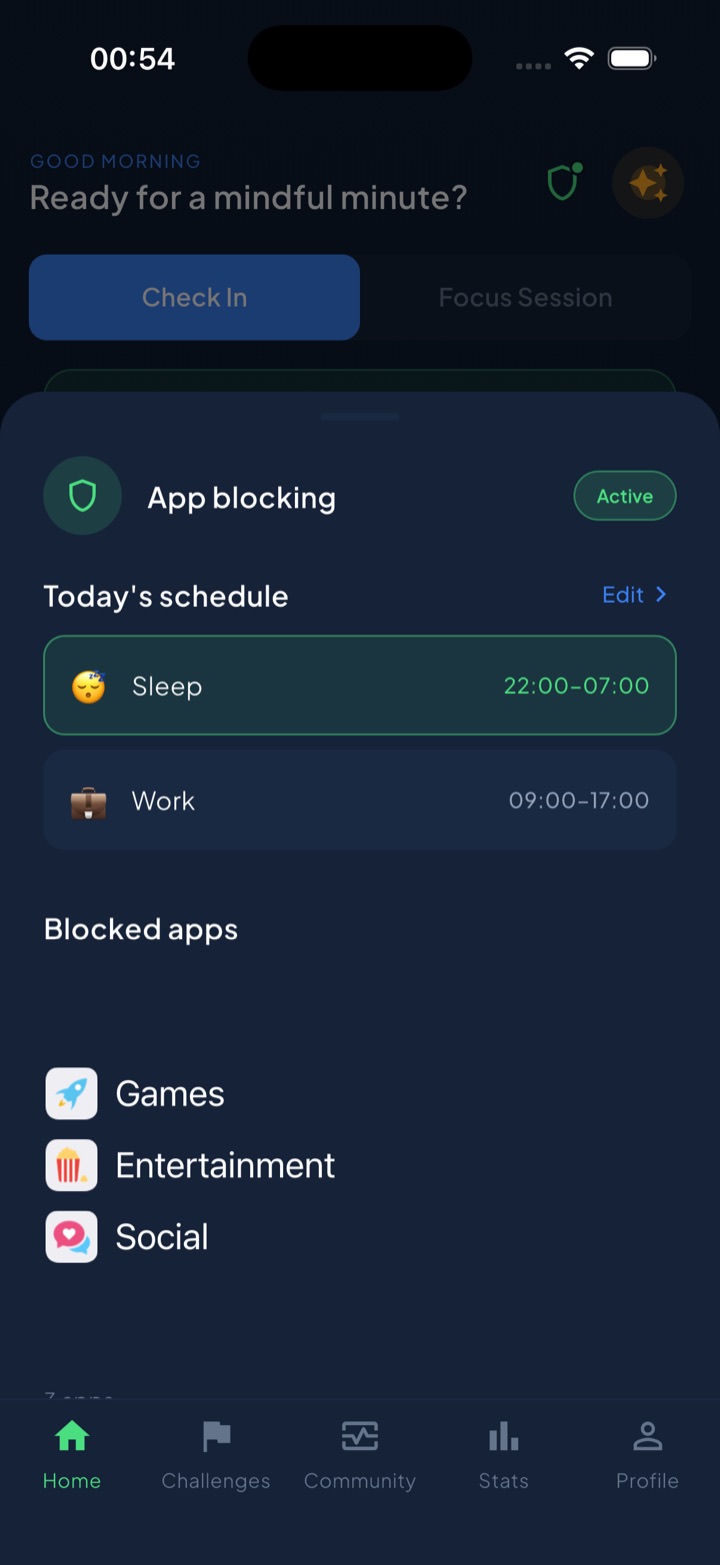
Instead of one dismissible screen, it runs a daily budget for the apps you choose, 45 minutes by default, with a 5-minute per-session cap. Burning a session locks those apps for 15 minutes; spending the whole budget locks them until tomorrow. Turning off a scheduled block deliberately takes a breathing exercise and a wait, not a tap. Because iOS hands the app opaque tokens rather than app identities, Unscrol cannot see which apps you picked or how long you spent in them; the list and the usage stay on the device. It is free to download, and the subscription adds a Streak Saver for a missed day and raises concurrent challenge slots from one to five.
What a working app limit still won’t fix
Fixing the technical side gets you a limit that fires. It does not get you a limit you respect, and for most people that was always the harder half. If you have the Screen Time passcode, every block you set is a block you can lift, and the version of you at 11pm is not the version who set it at 9am on Sunday.
It also will not help with the surfaces the limit never covered. If the habit lives partly on a laptop, partly in a browser and partly in a group chat you have reasons to keep open, an app limit on your phone covers a fraction of it and the rest simply moves. And if you are limiting someone else’s phone, none of this replaces the conversation about why, which lands better before the restriction appears than after.
Fix the toggles first, because a limit that never fires teaches you nothing. Then be honest about which row of that table you are actually in.
Frequently asked questions
Why is my app still opening after the Screen Time limit is up?
In almost every case the limit is firing correctly and the app is simply not being blocked, because the Block at End of Limit switch is off. Without it, hitting the limit shows a dimmed screen with buttons like Ignore Limit, Ignore Limit for Today or One More Minute, and any of them returns you to the app. Open Settings, then Screen Time, then App Limits, tap the individual limit, and check that Block at End of Limit is on. If you cannot find that switch at all, the device has no Screen Time passcode yet. Set one under Lock Screen Time Settings first and the switch appears.
Why is Block at End of Limit missing from my Screen Time settings?
Because the iPhone has no Screen Time passcode. Apple only shows the switch once a passcode exists, since a hard block with no passcode would lock you out of the app until midnight with no way back in. Go to Settings, then Screen Time, then Lock Screen Time Settings, and set a four-digit code that is not your unlock code. Enter an Apple Account recovery email when prompted, because that is the only supported way back if you forget it. Then reopen any existing App Limit and the Block at End of Limit switch will be there, off by default, waiting to be turned on.
Why don't the app limits I set for my child actually apply on their iPhone?
Family Sharing limits are pushed over Apple's servers to the child's device rather than stored locally, so they can arrive late, arrive partially, or not arrive at all. The usual causes are a child device that has not been online, an Apple Account signed out or duplicated across an old device, or a Screen Time service outage on Apple's side. Check on the child's own phone under Settings, then Screen Time, whether the limit is actually listed there. If it is missing, restart both devices, confirm both are signed in to Family Sharing, and remove any old device still listed in the family. Setting the limit directly on the child's phone works immediately.
Does changing the date or time zone bypass an app limit?
Yes. Screen Time counts a day against the device clock, so manually moving the date forward under Settings, then General, then Date and Time hands the device a fresh daily allowance and clears any limit already reached. Travelling across time zones does the same thing accidentally, which is why a limit can appear to reset in the middle of an afternoon. You can close the manual route by going to Settings, then Screen Time, then Content and Privacy Restrictions, then Location Services, entering the passcode, opening System Services and turning off Setting Time Zone. Automatic time from the network then becomes the only source and the day boundary stops moving.