Removing Screen Time from an iPhone is a bigger job than turning it off: you clear the Screen Time passcode, delete the individual limits and Downtime schedules, then switch off App & Website Activity, which also erases your usage history. Turning it off is one button at the bottom of one menu. Removing it means dismantling four things that each keep the feature alive on their own — the passcode that locks every other change, the limits and schedules themselves, the tracking layer underneath them, and, if someone else set it up, a Family Sharing organiser who still holds the keys.
That gap is why “remove” and “turn off” are different searches. People type “remove” after “off” has already failed them: a passcode nobody remembers, a limit that reappears the next morning, a parent who can still see the weekly report. This guide covers each of those separately, with the exact Settings path, and it is honest about the one thing removal never gives back.

What is the difference between turning Screen Time off and removing it?
Turning Screen Time off stops the feature from acting; removing it takes apart the pieces that survive an off switch. The off switch is reversible in a tap. The passcode, the Family Sharing supervision and the erased history are not symmetrical like that — two of them need someone else’s credentials, and one of them is gone for good.
| Action | What it clears | What it keeps | Reversible |
|---|---|---|---|
| Turn off App & Website Activity | Tracking, usage history, App Limits, Downtime, Always Allowed | Screen Time passcode, Content & Privacy Restrictions setting, Family Sharing role | Tracking restarts instantly, but the erased history never comes back |
| Turn off the Screen Time passcode | The lock on every Screen Time change | Every limit, schedule and report already in place | Yes, you can set a new passcode any time |
| Delete individual App Limits or Downtime | Only the specific budget or window you pick | Reports, history, all other limits, the passcode | Yes, re-create it in a minute |
| Erase iPhone and set up as new | Everything, including the passcode and all Screen Time configuration | Nothing on the device | No, and restoring a backup made while Screen Time was on brings the configuration back with it |
Read the table row by row and the order becomes obvious. The passcode comes first, because it is the gate. Everything else is a normal setting once that gate is open.
How do you remove the Screen Time passcode?
The passcode lives in its own menu, and the removal option is one level down from where most people stop looking:
- Open Settings and tap Screen Time.
- Scroll down and tap Change Screen Time Passcode.
- Tap Turn Off Screen Time Passcode to remove it entirely, or Change Screen Time Passcode to replace it with one you will actually remember.
- Enter the current passcode when asked.
That is the whole thing when you know the code. When you do not, the same menu is the recovery route: tap Change Screen Time Passcode, then Change Screen Time Passcode again, and choose the forgot-passcode option on the entry screen. Apple then asks for the Apple Account email address and password used when the passcode was set up, which is a specific and unforgiving requirement — not the account signed in today, but the one that created the code. Get through that and you set a new passcode, after which you can turn it off.
If that recovery account was never configured, or the phone came from a relative, a school or a second-hand seller who set the code, there is no supported bypass. The remaining option is Settings > General > Transfer or Reset iPhone > Erase All Content and Settings, then choosing Set Up as New iPhone during setup. Restoring the backup afterwards defeats the point, because a backup taken while Screen Time was configured restores that configuration too. We walk through the recovery paths in more detail in the guide on what to do when you forgot your Screen Time passcode.
How do you delete App Limits, Downtime and Communication Limits one at a time?
You delete each of them inside its own menu, and doing it this way is the surgical option — the reports survive, and only the rule you removed disappears:
- App Limits: go to Settings > Screen Time > App Limits, tap the limit, then tap Delete Limit. To wipe them in one go, use Delete All Limits at the bottom of the App Limits screen.
- Downtime: go to Settings > Screen Time > Downtime and turn Scheduled off. The window stops applying immediately.
- Communication Limits: go to Settings > Screen Time > Communication Limits and set both During Screen Time and During Downtime back to Everyone.
- Always Allowed: go to Settings > Screen Time > Always Allowed and move apps out of the allowed list, or leave it alone — with tracking off it stops mattering anyway.
Choose this route if your actual complaint is one specific rule rather than the feature as a whole. A single Instagram budget you have ignored for three weeks is not a reason to blind yourself to your own numbers.
How do you turn Screen Time off completely, and what disappears from Settings?
The full off switch sits at the very bottom of the Screen Time menu, below every feature row:
- Open Settings and tap Screen Time.
- Scroll past App Limits, Downtime, Always Allowed and Content & Privacy Restrictions, all the way down.
- Tap Turn Off App & Website Activity. On iOS 15 and earlier the same button reads Turn Off Screen Time.
- Enter the Screen Time passcode if one is still set.
- Confirm.
Afterwards the pane looks noticeably emptier. The activity summary at the top, along with the Downtime, App Limits and Always Allowed rows, disappears from Screen Time entirely. What remains is a single App & Website Activity entry, which now offers Turn On App & Website Activity if you change your mind. That emptiness is the clearest signal that the feature is genuinely dormant rather than just quiet — and it is also why the section keeps confusing people, since nothing was uninstalled and the Screen Time row itself never leaves Settings. If you only wanted the off switch, the shorter walkthrough is in how to turn off Screen Time.
How do you remove Screen Time for a child in Family Sharing?
Supervision has to be lifted by the family organiser, from the organiser’s device — a child with a parent-set passcode cannot remove it from their own phone, which is precisely what the passcode is for. On the organiser’s iPhone, open Settings, tap Screen Time, tap the child’s name under the Family heading, and turn their Screen Time off there.
The age rules underneath this catch a lot of families out:
- Under 13: the account cannot be removed from the family group at all. Apple only allows transferring the child to a different Family Sharing group. You can turn their Screen Time off, but the account stays a child account.
- 13 to 17: the organiser can usually remove them, or they can leave, but Screen Time must be turned off for that member first. Apple states this outright: if a member aged 13 to 17 has Screen Time enabled, the organiser has to switch it off before that member can leave or be removed. Whether removal is allowed at all still varies by country and region.
- 18 and over: an adult account, which can leave a family group on its own.
The distinction the brief version of this always misses: an organiser turning supervision off is not the same as the teenager switching it off. The first removes the parent’s control deliberately; the second is not possible while the passcode holds. If you are on the parent side of this and trying to decide what to keep, the parental controls guide for iPhone covers what is worth leaving in place after the strict limits come down.
“My daughter turned fifteen and I agreed to hand the phone back to her properly. I spent twenty minutes trying to remove her from the family group before I found the actual blocker — I had to turn her Screen Time off first, from my phone, and then the remove option finally worked. Nothing anywhere told me that was the order.” — Helena, dental nurse, 44
What happens to your usage history and reports when you remove Screen Time?
The history is deleted, not hidden. This is the part almost nobody spells out, so here it is precisely: turning off App & Website Activity removes the recorded usage data from the device — per-app time, pickups, notification counts, website categories — and stops new data from being collected. Switch tracking on again next month and the reports start from an empty chart. The intervening weeks do not exist anywhere; they were not moved into an archive.
Two consequences follow from that:
- There is no partial delete. Apple provides no way to remove Screen Time data for a single app or a single day. If you want a specific embarrassing week gone, the only lever is the one that erases all of it.
- The reports were the only honest mirror you had. Every other signal about your phone use is a guess. Removing the feature does not reduce your screen time by a minute, it just stops measuring it, and the number people quote after a month without tracking is almost always lower than the real one.
If it is the numbers themselves you distrust rather than the limits, the tracking layer is worth understanding before you delete it — we cover what it does and does not record in Screen Time’s App & Website Activity explained.
Why does a limit or a report keep coming back after you removed it?
Because something outside that iPhone is putting it back. Three causes account for nearly all of it:
- Share Across Devices is on. Found at Settings > Screen Time > Share Across Devices, this syncs Screen Time settings and reports across every device signed in to the same Apple Account, using end-to-end encryption through iCloud and requiring two-factor authentication. Delete a limit on the iPhone while an iPad still has it, and the configuration can come straight back. Turn the setting off on each device if you want them to behave independently.
- A second device is still enrolled. The Mac in particular is easy to forget, because its Screen Time pane looks like a separate feature and is not.
- A backup restored it. If you erased the phone and then restored a backup made while Screen Time was configured, you restored the limits, the schedules and the passcode along with your photos. Setting up as new is what actually leaves them behind.
There is a fourth cause worth naming: a Family Sharing organiser who is still supervising the account. Nothing you delete locally survives if the supervision is intact.
How do you remove Screen Time on a Mac?
Same idea, different menu name. Open the Apple menu > System Settings, click Screen Time in the sidebar, and turn off App & Website Activity there. If Family Sharing is set up, the pop-up menu at the top of that pane lets you switch between yourself and a child before turning it off. You will need the Screen Time passcode if one is set, exactly as on iPhone. The full walkthrough, including the older System Preferences layout, is in how to turn off Screen Time on a Mac.
What removing Screen Time does not fix
Here is the closing turn, and it is worth being blunt about. Most people who search for how to remove Screen Time are not trying to delete a Settings pane. They are trying to stop losing an argument with a feature that asks nicely and then steps aside — a limit that shows up at 11pm with an Ignore Limit button, which you tap, which teaches you that the limit was never real. Removing the feature ends the argument by conceding it.
If that is the actual problem, the fix is not less measurement, it is friction that is not one tap wide. A block that holds is one you cannot dismiss in a second, on a schedule you set while calm rather than while craving.
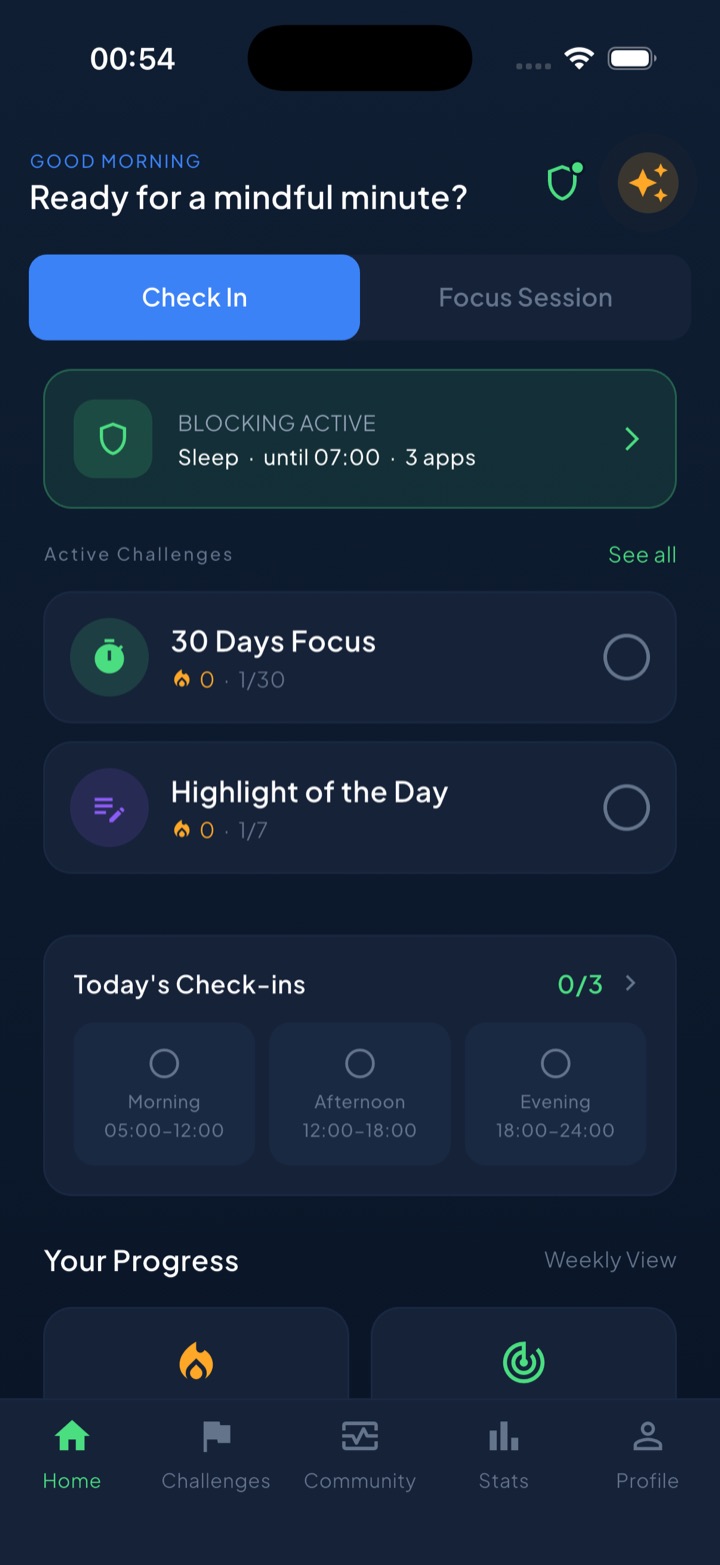
That is the gap Unscrol is built for. It runs on the same Apple Screen Time frameworks, so its blocks are system-enforced shields rather than reminders you can swipe away, but turning one off deliberately takes a breathing exercise and a wait instead of a single button. It works on a daily budget for the apps you choose, defaulting to 45 minutes, plus a 5-minute cap per session; burn a session and those apps lock for 15 minutes, burn the budget and they lock until tomorrow. Because iOS hands the app opaque tokens rather than app identities, it cannot see which apps you picked or what you did in them. It is free to download, and the paid tier only adds a Streak Saver for a missed day and more concurrent challenge slots.
None of that is a reason to keep Screen Time if you genuinely want it gone. Remove it. Just do it knowing what removal buys you, which is silence, and what it costs, which is the only honest record you had of where the hours went.
Frequently asked questions
How do I completely remove Screen Time from my iPhone?
Work in this order: first turn off the Screen Time passcode, because it blocks every other change. Go to Settings, tap Screen Time, tap Change Screen Time Passcode, then tap Turn Off Screen Time Passcode. Next delete any App Limits and Downtime schedules you want gone. Finally scroll to the bottom of the Screen Time menu and tap Turn Off App & Website Activity. That last step stops tracking, erases your usage history, and makes the App Limits, Downtime and Always Allowed rows disappear from the pane. If someone else manages your device through Family Sharing, none of this works until that person turns supervision off from their own phone.
How do I remove the Screen Time passcode if I don't know it?
Open Settings, tap Screen Time, tap Change Screen Time Passcode, then tap Change Screen Time Passcode again. On the passcode screen choose the forgot-passcode option and sign in with the Apple Account email address and password you used when the passcode was first created. Apple is strict about this: it has to be that account, not simply whichever account is signed in now. Enter a new passcode, and you can then turn the passcode off entirely. If the recovery account was never set, or nobody remembers it, the only remaining route is erasing the iPhone and setting it up as new, which deletes everything on the device.
Does removing Screen Time delete my usage history?
Yes, and permanently. Turning off App & Website Activity does not archive your reports somewhere for later. It deletes the recorded history on the device, including per-app time, pickups and notification counts, and stops new data being collected. Turn tracking back on a month later and the charts restart from zero, with the gap simply missing. Apple offers no way to delete Screen Time data for one app or one day, so it is all or nothing. If you only wanted the nagging limits gone but still like seeing your numbers, delete the individual limits instead and leave App & Website Activity switched on.
How do I remove Screen Time from my child's iPhone?
The child cannot do it themselves while a parent's passcode is set, so it has to come from the family organiser. On the organiser's iPhone open Settings, tap Screen Time, then tap the child's name under the Family heading, and turn their Screen Time off from there. This matters if you plan to remove a teenager from Family Sharing entirely: Apple requires the organiser to turn off Screen Time for a member aged 13 to 17 before that member can be removed or leave the group. Children under 13 cannot be removed from a family at all, only transferred to another one.