If Screen Time shows no “Forgot Passcode?” link, it is almost always because no Apple Account was attached to that passcode when it was first created — and iOS will not add one retroactively. The link is not hidden, disabled or buried in a submenu. It is drawn only when Apple has an account to verify you against, and only for the person entitled to reset the code. That single fact explains most of the ways this goes wrong, including the case where the passcode belongs to a family organiser on a completely different phone.
This article is about getting back into a device you own or manage. If the phone belongs to someone else and they set the passcode, none of this applies to you, and no legitimate route exists.
Where is the “Forgot Passcode?” link supposed to appear?
Under the number keypad, on the screen where you are asked to type the existing Screen Time passcode. The path on iOS 26 is:
- Open Settings and tap Screen Time.
- Scroll down and tap Change Screen Time Passcode.
- Tap Change Screen Time Passcode again on the sheet that slides up.
- The four-digit keypad appears. “Forgot Passcode?” sits directly beneath it.
- Tapping it asks for the Apple Account email address and password linked to the passcode.
Two things people misread here. First, if you have never set a Screen Time passcode on this device, that row does not say “Change Screen Time Passcode” at all — it says Lock Screen Time Settings, and there is nothing to recover. Second, the recovery link only renders on the change-passcode keypad. It does not appear on the keypad you get when you tap “Ask For More Time” on a blocked app, which is where a lot of people go looking for it.
If the link is there and simply not working, that is a different problem with different fixes, and it is covered in the walkthrough for a forgotten Screen Time passcode. This article is about the case where the link does not exist at all.

Why is the “Forgot Passcode?” option missing on my iPhone?
There are four causes, and they are not equally common.
No recovery account was ever attached. This is the overwhelming majority of cases. Apple introduced Screen Time Passcode Recovery in iOS 13.4. When you create a passcode, iOS shows a screen asking for an Apple Account email and password to use for recovery — and it lets you skip it. Anyone in a hurry, or anyone setting a code for a child on a device not signed into the parent’s account, taps past it. Once skipped, there is no way to attach an account later without knowing the current passcode. Updating to iOS 26 does not backfill it.
A different Apple Account was signed in at the time. The recovery is bound to one specific account, not to whoever is signed in today. If the passcode was set while an old iCloud address, a partner’s account or a work Apple ID was active, the current account will not match and the reset is refused even with the correct password.
The passcode belongs to a family organiser. On a child or teen device inside Family Sharing, the recovery link is not the child’s to use. Apple deliberately keeps the reset on the organiser’s device, which is why the child’s phone shows a keypad and nothing else.
The passcode is older than iOS 13.4, or came over in a restore. A device restored from an old backup carries the old Screen Time passcode with it, recovery link and all — or, more often, without it. The passcode data lives inside the backup, so a device that looks freshly set up can arrive already locked with a code nobody remembers setting.
There is also a small residual category of genuine bugs. Apple Support and developer forum threads have reported the link failing to render or rejecting a correct Apple Account password on specific point releases. If everything above should apply to you and the link still is not there, installing the latest iOS update is worth one attempt before you consider anything drastic.
What actually works when the link is not there?
It depends entirely on who holds the passcode, not on how badly you want it removed. This table is the honest summary:
| Your situation | Does “Forgot Passcode?” appear | What actually recovers access |
|---|---|---|
| You own the device and attached an Apple Account when you set the code | Yes, under the keypad | Sign in with that exact Apple Account and set a new passcode, or turn Screen Time off |
| You own the device but skipped the recovery step | No | Erase the device and set it up as new. A backup restore brings the old code back |
| You are the family organiser and the code is on a child’s device | Not on the child’s device | Reset it from your own iPhone: Settings > Screen Time > child’s name > Manage Screen Time > Change Screen Time Passcode |
| The device is managed by someone else — another organiser, a school or an employer | No | Only that person or administrator can change it. There is no self-service route, and there should not be |
The last row is the one people least want to read. A Screen Time passcode set by another account holder is doing exactly what it was designed to do. Asking the organiser is not a workaround, it is the mechanism.
How does a family organiser reset a child’s passcode?
From the organiser’s own device, in about thirty seconds, without touching the child’s phone:
- On your iPhone or iPad, open Settings > Screen Time.
- Scroll to the Family section and tap the child’s name.
- Tap Manage Screen Time under Restrictions.
- Tap Change Screen Time Passcode, then confirm on the sheet.
- Enter a new four-digit code twice.
You may be prompted for your own device passcode or Face ID first. The new code takes effect on the child’s device without any action from them.
The catch is that this only works if the child is actually inside your Family Sharing group with a child Apple Account. If a teenager was set up years ago with an ordinary adult Apple Account, they are not in the Family list and this path simply does not exist — you fall back to that account’s own recovery. The full set of options for managing a young person’s device is covered in the parental controls guide for iPhone.
Is erasing the iPhone really the last resort?
Yes, and it costs more than most articles admit. If you own the device, no recovery account is attached, and the Apple Account route is closed, the only supported way to clear a Screen Time passcode is:
- Back up your photos, messages and files to somewhere you can retrieve them manually.
- Open Settings > General > Transfer or Reset iPhone > Erase All Content and Settings.
- When the device restarts, set it up as new.
Step three is the whole point, and it is where people undo their own work. Restoring from an iCloud or computer backup brings the Screen Time passcode straight back, because the passcode is stored inside the backup rather than on the device. Erasing and then restoring gets you a phone that is empty of nothing and still locked. Setting up as new means genuinely starting from zero: apps redownloaded, settings redone, anything you did not manually copy out of the backup gone for good.
That is why “erase it” is not a step to take on a Tuesday evening because a limit is annoying. It is a step you take when you have decided the device is worth resetting for other reasons anyway.
Why is there no “Forgot Passcode?” option on my Mac?
Because Apple’s Mac documentation never promised one. The Mac controls live in System Settings > Screen Time, where you will find a Lock Screen Time Settings toggle and, once a passcode exists, a Change Passcode button. Apple’s own Mac support page for setting, changing and removing a Screen Time passcode does not describe an inline recovery link — it sends you to the iPhone and iPad recovery article instead.
The practical route on a Mac is usually indirect. If Share Across Devices is switched on and your Mac and iPhone are signed into the same Apple Account, Screen Time settings and the passcode sync between them, so resetting the code on the iPhone updates the Mac as well. If Share Across Devices is off, or the Mac uses a different Apple Account, the Mac’s passcode is a separate thing with the same problem and the same constraints.
One more Mac-specific wrinkle: because macOS lets you create a second user account, some people work around a locked Screen Time configuration by working in a different local account entirely. That does not remove the passcode, it just sidesteps a per-user setting, and it leaves the original account exactly as locked as before. If what you actually want is Screen Time off on that Mac, the direct approach is in the guide to turning Screen Time off on a Mac.
Do third-party “Screen Time passcode remover” tools work?
They mostly do something you can do yourself, for free, and they ask for a lot in exchange. This is a whole software category — desktop utilities that promise to remove a Screen Time passcode in minutes for somewhere between thirty and seventy dollars. I am not going to name or link any of them.
What they typically require is telling: full physical access to the device, a wired connection to a computer, and in many cases that you disable Find My first. What they typically deliver is a guided version of Apple’s own erase-and-set-up-as-new procedure, sometimes with the passcode read out of a local backup on the same computer. That last trick only works when the passcode was already inside a backup you control, which means it works exactly in the situation where you did not need a tool.
The security question is the real one. Disabling Find My removes your theft protection. Handing a device with your data on it to an unfamiliar desktop utility is a genuine risk, and the marketing on these pages is written for people who are frustrated and in a hurry — which is precisely when nobody reads what a program is asking for. Apple’s built-in reset, tied to the Apple Account that set the passcode, is the only route that does not require trusting a stranger with your phone. If you want a sense of how much an app can actually see on iOS, the piece on what a blocker can and cannot see covers the permission model.
How do you stop this happening again?
Attach a recovery account the next time you set a passcode. When iOS shows the Screen Time Passcode Recovery screen after you enter the new code twice, type the Apple Account email and password rather than skipping. It takes ten seconds and it is the difference between a one-minute reset and an erased phone.
But there is a second, less mechanical answer, and it applies to a specific reader: the one who set a Screen Time passcode on their own device to stop their own scrolling.
If that is you, the lockout is not an accident. It is the design working in reverse. You made yourself the gatekeeper of your own restriction, which means the person who wants past the limit at 11pm and the person holding the key are the same person with the same brain. Sometimes that resolves as “I remember the code and I will just tap Ignore Limit.” Sometimes it resolves as a genuinely forgotten four digits and a phone you now cannot configure. Both outcomes come from the same root, which is why so many people conclude that screen time limits don’t work when the mechanism itself is fine.
“I set a Screen Time passcode during a bad week, skipped the Apple ID screen because I was on the train, and then locked myself out of my own Settings for four months. I could still use the phone. I just could not change anything about how I used it. I ended up wiping it on a Sunday and starting from scratch.”
— Marek, warehouse shift supervisor, 34
The more durable arrangement is one where the off switch is not a secret you keep from yourself. That can be as low-tech as giving the passcode to a partner or a flatmate. It can be a schedule that runs on a clock rather than on a decision. Or it can be a limit that is designed to be reopened deliberately rather than never.
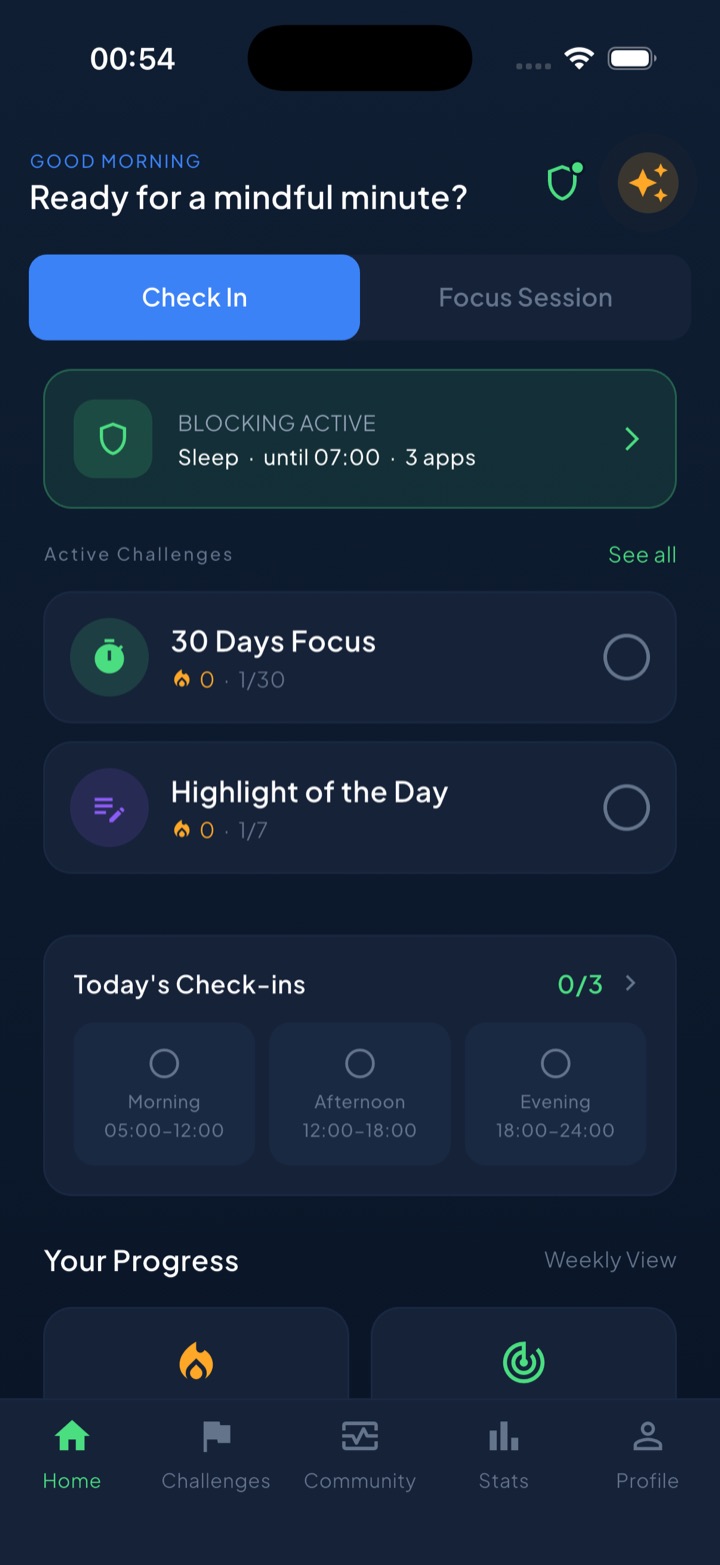
That last approach is what Unscrol is built around. It runs on Apple’s official Screen Time frameworks, so the blocks are real system-enforced shields rather than reminders, but the way you get out of one is different: turning off a scheduled block deliberately requires a breathing exercise and a wait, not one tap and not a passcode you can simply forget. The core mechanic is a daily budget for your distracting apps — 45 minutes by default — with a 5-minute per-session cap, so burning a session locks those apps for 15 minutes and spending the whole budget locks them until tomorrow. Because it uses Apple’s opaque app tokens, Unscrol never learns which apps you picked or how long you spent in them; that stays on the device. It is free to use, and the subscription adds Streak Saver and raises concurrent challenge slots from one to five.
What this does not fix
None of the above helps if the device is not yours to manage. If a parent, a partner, a school or an employer set that passcode, the absence of a “Forgot Passcode?” link is the feature, not the fault, and the fix is a conversation rather than a procedure.
It also does not help if you have genuinely lost access to the Apple Account itself. Screen Time recovery is one of many things that account gates, and recovering the account is a separate and much slower process through Apple.
And if you came here because a self-imposed limit locked you out of your own Settings, changing the passcode arrangement will not, on its own, change how much you reach for the phone. It removes one specific failure mode. The reaching is a longer piece of work.
Frequently asked questions
Why is there no 'Forgot Passcode?' option under my Screen Time passcode?
Because no Apple Account was attached to that passcode when it was created. Apple added Screen Time Passcode Recovery in iOS 13.4: after you set a passcode, iOS offers to link an Apple Account, and you can skip that step. If it was skipped, iOS has nothing to verify you against, so it does not draw the recovery link under the keypad. The other common cause is that the passcode is not yours to reset. On a device managed through Family Sharing, only the family organiser can change it, and the link never appears on the managed device itself. Updating iOS does not add recovery retroactively.
Can I reset a Screen Time passcode without the Apple ID that set it?
Not through any supported route. The reset is a signed check against the exact Apple Account that was linked when the passcode was created, so a different Apple ID, an old iCloud address or a work account will all be rejected even if the password is correct. If the account is genuinely unavailable and you own the device, the only remaining option is to erase it and set it up as new. Restoring from an iCloud or computer backup will bring the old passcode straight back, because the code is stored inside the backup. Copy your photos and files somewhere else before you start.
How does a family organiser reset a child's Screen Time passcode?
From the organiser's own iPhone or iPad, not the child's device. Open Settings, tap Screen Time, scroll to the Family section and tap the child's name, then tap Manage Screen Time under Restrictions and choose Change Screen Time Passcode. You may be asked for your device passcode or Face ID first. Set the new code and confirm it. Nothing needs to be typed on the child's phone, and the child never sees the new code unless you tell them. If the child's Apple Account was created outside Family Sharing, this route does not exist and you use that account's own recovery instead.
Is there a 'Forgot Passcode?' link for Screen Time on a Mac?
The Mac passcode uses the same Apple Account recovery, but Apple's own Mac documentation does not describe an inline link. It points you to the iPhone and iPad recovery article instead. The practical shortcut is Share Across Devices: if that is on and your Mac and iPhone are signed into the same Apple Account, resetting the passcode on the iPhone updates it on the Mac too. On the Mac itself the controls live in System Settings, then Screen Time, where you will see a Lock Screen Time Settings toggle and a Change Passcode button once a passcode exists.